overview
work{spacer} is a local-first control plane and IDE for coding agents: a place to run many long-lived agent sessions side by side, watch every one of them, and review and ship the code they write. You run it on your own machine. Nothing here is a hosted service.
the problem
One claude session is easy. You sit in the terminal it runs in and watch it. That breaks the moment you have more than one going at once. Tabbing between terminals, you lose track of which agent is working, which one is blocked on an approval, and which one finished ten minutes ago and is sitting idle. You can't babysit a whole fleet at the same time, and most of the switching you do doesn't pay off.
work{spacer} keeps the ambient state of every agent in front of you so you only switch when it's worth it. The sidebar is a live activity feed: each agent is a card showing its state, its latest actions, the message it's working on, and context % and token/cost readouts, with an "N need you / N working" header on top and a quiet History row below the fleet. That row opens the Sessions pane, a searchable browser of past sessions grouped by project and backed by Claude's own transcript files (the same list claude --resume offers), so what you see is what Claude remembers for each project. A Triage Inbox drawer collects the approvals and questions waiting on you across all agents, and you can jump straight to the next agent that needs you. OS notifications fire on needs-approval / needs-input (and optionally on done), suppressed for the agent you're already watching. You switch when the sidebar tells you there's a reason to.
the mental model
The core unit is the agent workspace:
- one agent = one long-lived session = one workspace. Each agent is a single claudemon session with its own working directory. It has its own tabs and panes (the Claude pane, plus terminals, a browser, a git review/diff pane, and more).
- sessions live in the daemon, not the window. The session runs in
claudemon, independent of any UI. Close the desktop window and the agent keeps running. A session spawned from somewhere else (the MCP facade, another agent) gets auto-adopted and shows up as a card on its own. - one card per session, everywhere. The same agent shows up exactly once whether you're looking from the desktop app, the terminal client, or a remote device, never doubled, never out of sync.
You move between agents in the sidebar, and flip the whole chrome between two UI modes: fleet (the full cockpit, the default) and focus (a distraction-free chat rail with a compact attention badge). Switching modes never remounts your live panes. There's also a Fleet Deck, a cross-agent radar of live agent cards, as a higher-altitude view over the same sessions.
what's running on your machine
You launch one thing, the desktop app, but a few processes run behind it. You never start them by hand; the app does, and it restarts them if they crash.
- the desktop app: the window you click. It's just a client. It doesn't hold your sessions, it displays and drives them.
- the session daemon (
claudemon): a background process that owns every agent session and terminal. It keeps running whether or not a window is open, which is why closing the window never kills an agent. - the hub: a background bus that hosts plugins and lets other clients see and drive the same fleet: the terminal app, your phone, a second PC.
You can also drive the same fleet from a terminal with wks-tui, or from a phone/laptop over the network (see remote and multi-client). Because every client talks to the same hub and the same session daemon underneath, a session started in one place can be watched and driven from anywhere else.
getting started
Install work{spacer} and spawn your first agent. The getting started section walks through it. If you're building from source or writing a plugin, see the build & internals page instead.
getting started
This walks through a first run: get the app, spawn your first agent, and find your way around. Building from source and packaging are covered on the build & internals page.
install and launch
Install the desktop app and open it. On first launch it starts its background daemons for you, wires Claude's hooks into ~/.claude/settings.json automatically (that's how the live conversation view, state dots, and approval forwarding light up), and restores your most recent workspace automatically, with agents, tabs, and panes back where you left them. A brand-new install just starts clean: spawn your first agent.
On macOS there is one extra step. The mac build is Apple Silicon only, and it is neither signed nor notarized, so Gatekeeper refuses to open it and right-click › Open will not get you past that. Open the .dmg, drag Workspacer to Applications, then clear the quarantine flag yourself:
xattr -dr com.apple.quarantine /Applications/Workspacer.appFor a machine with no desktop at all, each release also ships a standalone headless server (workspacer-server-<os>-<arch>): extract it and run ./workspacer serve, then connect from your phone, another PC, or the terminal app (see remote and multi-client). The desktop app bundles the same workspacer CLI; put it on your PATH with "Install workspacer Command" in the command palette, or Settings → Command Line.
One concept to keep in mind from the start: your window is disposable. Agents run in the background session daemon, not in the window. Close work{spacer} and your agents keep working; reopen it, or the terminal app, or your phone, and you reconnect to the same live sessions.
spawn your first agent
Hit Ctrl+Shift+N (or the + in the sidebar) to open the spawn dialog. Pick a working directory, optionally name it, and choose a supported backend: Claude Code, Codex, GitHub Copilot, or OpenCode. Pi is not offered because its CLI has no MCP bridge for the required Workspacer tools.
Spawn a few more in other directories. Each one is its own workspace with its own tabs and panes. The sidebar shows every agent's live state at a glance, and the "N need you / N working" header tells you who's blocked on a decision. See running agents for every field in the spawn dialog.
find your way around
- Command palette (
Ctrl/⌘+K): a fuzzy launcher for new panes, dialogs, your saved prompts and skills, and plugin panes. The keys to drive it are on the bar itself, and the binding follows your keymap preset (the Vim preset puts it on the leader, JetBrains on its own Find Action combo). - Switch agents in the sidebar, or
Ctrl+Tab/Ctrl+Shift+Tab. - Jump to whoever needs you (
Ctrl+Shift+Space), or open the Triage Inbox (Ctrl+Shift+I) to clear approvals and questions across the whole fleet like email. - Fleet Deck (
Ctrl+Shift+F): a cross-agent radar showing every agent at once, with the ones that need you floated to the front. - Keyboard cheatsheet: press
F1any time. - Ask the guide: the welcome card (and the Workspacer Guide palette entry) opens a chat with a live tour agent. Pick "Show me around" and it walks the app, opening each surface as it explains. It runs on your own Claude account, so answers use a little of your usage; nothing runs until you ask.
The rest of these docs go pane by pane and feature by feature. A good order from here: running agents → the agent pane → attention and notifications.
running agents
work{spacer} currently spawns four coding agents: Claude Code, Codex, GitHub Copilot (beta), and OpenCode (beta). Pi adapter code remains experimental, but Pi is not a supported Workspacer spawn because its CLI has no MCP bridge.
the spawn dialog
Open it with Ctrl+Shift+N or the + in the sidebar. It always asks for:
- Working directory: type a path or hit
Browse…. This is the agent's project folder, and the default folder for every pane it opens (its terminals, its git review, etc.). - Name (optional): defaults to the folder name. You can rename it later.
- Agent: pick
Claude Code,Codex,GitHub Copilot(beta), orOpenCode(beta). - Permissions: a permission-mode picker, shared across providers. The shipped default is the provider's own Ask to approve mode, so a fresh agent asks before privileged actions; pick Full access (bypass / YOLO) to let it run unattended, or set
claude.skipPermissionsDefaultto make bypass the spawn default. You can also switch the mode live later, from the composer. - Worktree (git repos only): run the agent in the repo directory, or in an isolated worktree: a fresh
git worktreeon a newwks/<name>branch under~/.workspacer/worktrees, so parallel agents in one repo don't fight over the same branch. A fresh worktree comes up ready to work. The source checkout'snode_modulesfolders are symlinked in automatically (only where git ignores them), and then the project's own worktree setup commands run, an ordered list you edit per project in Settings → Projects (config:projects[<dir>].worktreeSetup). Each command runs in the new worktree with$SOURCE(the source checkout) and$WORKTREE(the new tree) substituted and exported, under a 5-minute timeout;script:<name>runs one of the project's script buttons. The first failing command is logged and skips the rest, but the agent still spawns.
If you pick Claude Code, a few more fields appear:
- Resume session (optional): if you've run Claude in this folder before, you can pick a previous conversation to continue instead of starting fresh. Each is listed by how long ago it ran plus a short summary. The default is to start fresh.
- Model: defaults to
claude.defaultModel: opusplusclaude.contextWindow: 1000000from config; pick aLatestalias, pick a model you've used before, or type a custom id (e.g.opus). - Profile (optional): a saved bundle of model + config dir + extra args + a default set of MCP servers (see configuration).
Defaultif you don't pick one. - MCP servers (optional): tick which MCP servers from your Library to expose to this session. Only the ones you check are loaded.
- Workspacer tools: every supported agent automatically receives the full Workspacer tool surface, including spawning direct children and maintaining project briefs, plus tools from every enabled plugin. Per-session tokens identify the session and are revoked with it; they do not grant tiers or plugin selections. Legacy
toolScope, plugin-selection, profile-grant, and yolo-grant fields remain parseable but inert. Pi is unsupported because it has no MCP bridge. - Transport:
headless(the default) drives Claude over its stream-json protocol via claudemon, giving a structured GUI-only session with no terminal view.terminalruns the classic interactive CLI in a PTY, giving you both the GUI and a raw terminal view.
For Codex, GitHub Copilot, and OpenCode, Workspacer passes the provider's own model, transport, and permission choices through and automatically attaches the full Workspacer + enabled-plugin tool surface. GitHub Copilot organization policy may disable third-party MCP servers; the pane reports that condition. Codex retains its headless/hybrid transport choice. Pi is not available for Workspacer spawning because it has no MCP bridge.
Enter in any field spawns; Esc cancels.
terminal-style vs managed agents
There's one difference worth knowing between the backends, in how their pane behaves:
- Claude on the terminal transport has both a rich GUI conversation view and a raw terminal view, and you can flip between them (see the agent pane). Codex on the hybrid transport gets the same pair: its native TUI in the terminal view, the structured GUI on top, one shared thread.
- Everything else supported is managed: Claude on the default headless transport, headless Codex, GitHub Copilot, and OpenCode. The session daemon drives the agent's protocol directly and renders the conversation, so these are GUI-only.
Whatever the supported backend, provider-native permission modes flow through without a separate Workspacer grant. Approval and structured question cards surface in the pane, sidebar, and Triage Inbox. Every supported backend reports live token usage; Codex cost remains an estimate because its wire carries no dollar amount.
agents started elsewhere show up automatically
You don't have to start every agent from the window. A session spawned by the Fleet Manager, by the MCP facade, by the terminal app, or on another machine, gets auto-adopted: it appears as its own card as soon as it's running, deduped so you never see the same session twice across clients. If it was spawned as a child of another agent, it nests under that parent in the sidebar.
ask the fleet
You spawn one from the Ask pane ("ask the fleet"): a plain agent with the same ambient Workspacer and enabled-plugin tools as other supported agents. Its prompt scopes it to the question; Workspacer does not enforce a reduced tool grant. Use it for things like a cross-fleet standup, a triage sweep, or a cost rollup.
respawn, terminate, rename
- Respawn restarts a stopped agent with the same folder, backend, profile, model, and settings, and resumes the prior conversation when it can. Its panes re-point at the fresh session.
- Terminate ends the agent's session and removes the card. The pinned Overview workspace can't be terminated. Closing an agent's last tab or pane also terminates it.
- Rename changes the display name (it defaults to the folder name).
- Archive (right-click a card) hides it from the sidebar without stopping it or touching its conversation. The archive belongs to the hub, so archiving in the native client, the web app, the desktop or the phone (
/m) hides the session in all of them. An Archived row under the fleet lists what's hidden; right-click one there to Restore it. On the phone it is the Archived filter, with Archive and Restore under ⋯.
Because sessions live in the background daemon, switching between agents never starts or stops one. Only an explicit terminate (or the agent ending on its own) tears a session down.
the fleet manager
The Fleet Manager is one agent session whose whole job is delegation. Like other supported agents it receives the ambient Workspacer tools. What makes it a manager is its role doctrine, request/workflow ownership, slash commands, and global wake-target registration — not a broader child grant.
starting one
The entry point is the Fleet Manager box at the top of the pinned Overview workspace: type an ask, or click one of the preset chips (What's the state of my projects?, Set up project briefs, Status of dispatched work). The command palette has a Fleet Manager entry that sends the project-inventory ask.
There is only ever one. An ask goes to the running manager as an ordinary message if one is up; a stopped Fleet Manager card is respawned and resumes its old conversation; only with neither does a fresh session start.
- Where it opens. Its working directory is
agents.fleetRootif you set one, else the common parent of your configured projects, else your home directory. A leading~/is expanded. Every directory under that root is a project it can dispatch into, and that root is also what bounds its brief writes. - Which harness it runs on.
claude,codexorcopilot. It dispatches workers on any of the four supported backends. - How it renders. Chat-first, on the headless stream transport, so it is a conversation with no terminal view.
This is a different thing from ask the fleet, which watches the fleet and reports. The manager hands work out.
configurable workflows
In Settings ▸ Fleet Manager ▸ Workflows, choose the sequence the manager follows for new tasks. The default investigates when material risk warrants it, implements the change, and uses a fresh worker for independent review. Clone a starter to change its steps, instructions and dispatch templates. Set a global default or choose a different workflow in Settings ▸ Projects.
- Separate workflow from model choice. Steps define the work and its role. Settings ▸ Routing controls provider and model preferences; a workflow does not grant additional permissions.
- Keep active tasks consistent. Each task keeps the workflow and templates it started with. Later edits apply to new tasks.
- Inspect the outcome. Recent agents → task details shows the steps, skipped reasons and reported results. A completed step means its result was received and validated; read the result to see whether the review passed.
- Desktop host required. Configured workflows currently run through the local desktop app. The headless server and federated peers do not execute them.
For the full behavior and API contract, see Fleet workflow documentation.
how a task gets dispatched
Every dispatch is a real session, not a subagent: its own card nested under the manager in the sidebar, its own panes, its own transcript, drivable by you at any point and visible from the phone. The manager picks the shape:
- Ship tasks change code. They go into an isolated worktree (
worktree: true), so several agents working the same repo never collide on a branch. - Scout tasks only investigate by workflow contract and instruction. Workspacer no longer treats
toolScopeas a grant boundary; supported agents receive the same ambient tool surface. - Review tasks follow a ship task that lands, and they go to a different worker. The implementer is never asked whether its own work is right, because the reasoning that wrote the code cannot grade it. Every dispatch is a fresh session, so the reviewer starts with no memory of the implementation; it is given the task, the acceptance criteria, the constraints, the diff and the test results, and not the implementer's plan or transcript. The manager also tells routing which harness the implementer ran on, so the reviewer can be answered with a different model family and does not inherit the same blind spots.
- Model, effort and harness are not picked by hand. The manager names the role the work is (
implementer,scout,reviewerand so on), asks limit-aware routing what that role is worth on this machine right now, and passes the answer to the spawn. It overrides the harness only to move load off a provider whose window is tight. - A worker that drifts is restarted with
respawn_with, which clones the original task, directory, model, provider and parent, and adds only a correction, so the whole task never has to be restated. - A structured result can be demanded up front. A dispatch may carry a JSON Schema; the worker is told to end its final message with a fenced
wks-resultblock matching it, and the manager's wake carries that object already parsed and validated, rendered as its own card. If the block is missing or fails the schema, the wake says so explicitly and the prose report still arrives. - A worker can escalate needed authority or a decision with a fenced
wks-escalationblock. Its strict six-key payload istype,status,reason,requiredAuthorityOrDecision,changed, andnextAction. A valid escalation is a terminal alternative to the structured result and renders the blocker, required authority or decision, whether anything changed, and the next action in a separate card; malformed blocks remain prose and do not hide a missing or invalid result.
delivery mode and per-project autonomy
Two per-project settings live under Settings ▸ Projects, on each project's Fleet row.
- Delivery (
projects[<dir>].delivery):pr(the default) means a worker opens a pull request for you to review;localmeans it lands changes on a branch for a local merge once you approve. The manager reads it at dispatch and states it in the worker's first message so the instructions and the landing can't diverge. It is advisory to the manager, not a hard gate: nothing in git or the hub enforces it, and a worker that ignores it is not stopped. Treat it as a standing instruction the manager relays, not a policy the system applies. - Provider permissions: Workspacer passes the chosen provider permission mode through at spawn. It does not add a second child-grant system. Legacy project
yolo,agents.fleetFullAccess, and tokenyoloAllowedfields may still parse during upgrades but are inert.
the wake: why it never polls
A manager that loops on "is it done yet" is not monitoring, it is a hang: its turn never ends, so you can't reach it. The doctrine forbids polling, and what makes that rule hold is that the manager never has to check. Five kinds of message are delivered into its conversation for it, as [fleet] lines through one channel:
- A worker finished. The wake carries the worker's label, session id and directory, an excerpt and its complete final message, and the validated structured result when the dispatch asked for one. A session that was killed or that died on a provider error is marked as such instead of reading like a clean finish.
- A worker escalated. The worker reached a terminal authority or decision blocker rather than an ordinary completion. Its validated strict six-key payload arrives without a contradictory missing-result error; the manager resolves what is in scope and asks the user only for destructive, external, credential, cross-repo, or otherwise unauthorized action.
- A worker is blocked on an approval or a question. Debounced by about 20 seconds first, because most blocks clear on their own and a wake costs the manager a whole turn of context.
- A threshold it armed was crossed.
notify_whentakes a session and one ofcontextUsedPct,tokens,usdoridleSeconds, and fires once. UsecontextUsedPct(greater than 0 and at most 100) for active-context health when the provider supports a runtime window (currently not OpenCode or Pi): it evaluates only a fresh runtime-confirmed occupancy/effective-window pair, waits through missing, stale or provisional telemetry, and includes the numerator, denominator, provider and observation provenance in its wake. Claude correlates that pair on result frames; during a long turn the previous sample may age stale and the watch waits rather than trusting an in-progress numerator.tokensremains a cache-inclusive cumulative-throughput cadence alert—not context health, and not reset by compaction.usdremains cumulative session cost. Watches are one-shot and in memory: they fire and are gone, and none survive a restart. A provider/session/model telemetry reset invalidates a context watch and asks the manager to re-arm. - A worker reported its own progress.
report_progressis the one thing a worker may say to the manager that dispatched it: a single line, in its own words, for what only it knows ("finished phase 1", "the approach you gave me is wrong"). The recipient is never a parameter. The host stamps the caller's own session and delivers to that session's parent, so a worker cannot reach any session but the one that dispatched it. It is available at every tier, read-only scouts included, and it is bounded: about 500 characters, one a minute, twenty for a worker's whole life, with anything over a bound refused out loud rather than silently dropped.
Wakes for several workers finishing at once coalesce into one message, and a sweep catches a finish whose wake was missed and delivers it late as a catch-up. Nothing here depends on the worker cooperating: the finish and blocked wakes are driven by session state on the host, so a worker with no work{spacer} tools at all still wakes its manager when it lands.
slash commands
A manager gets three skills for its own session only. Claude loads them as the workspacer-fleet plugin (so they run as /workspacer-fleet:standup and so on), Codex receives them as skills on the session's app-server, and GitHub Copilot, which has no per-session channel, gets them in its personal skills directory (~/.copilot/skills). Ordinary agents never see them, and a manager never sees the ordinary agents' skills:
/standup: one status digest, in four sections (in flight, landed recently, waiting on you, next up), composed from the briefs and the live agent list. It reads only. It spawns nothing and changes no brief./checkpoint: the considered end-of-session pass. It sweeps the conversation for what would be lost on a restart, files each finding to the most specific home, then prunes the briefs it touched. See briefs./handoff: succession, below.
These files are rewritten to the shipped version every time a manager spawns, so local edits to them do not survive.
succession
A manager eventually runs out of context, and the workers it dispatched still point at it. Fleet wakes are keyed on a worker's parent, so until they are moved, each one finishes by reporting to a session that is gone.
/handoffruns/checkpointfirst, then writes<fleet root>/.workspacer/handoff.md: the live dispatches and what each was told, what is owed to each when it lands, the decisions parked on you, what was established in conversation only, and the one next action. It names its own session id on the first line and drops aHANDOFF PENDINGpointer into the fleet brief's## Now. A fresh manager reads both on its first turn and deletes the file once it has absorbed it.adopt_workerstakesfromSessionId(the manager being replaced) andtoSessionId, and re-points every still-running worker so they wake the successor instead. "Nothing was still parented" is a real answer, not a failure.list_orphansis the discovery half for a manager that crashed without writing a handoff. It returns every dead parent that still has live children, with its label, its directory, when it died, whether it was confirmed to be a manager, and the workers still pointing at it. It only reports; the successor picks the id and callsadopt_workersitself. Nothing is ever adopted automatically, because a wrong guess silently re-points another manager's workers.
None of this survives restarting the app. A session's parent, its label and its manager flag live only in the desktop process's memory; the session daemon has no such fields. Your sessions themselves survive and stay resumable, but the manager-to-worker graph does not, so after a restart no live session carries a parent at all and list_orphans has nothing to find. Succession is a within-run mechanism. In practice that means running /handoff before you quit, and replacing a spent manager by terminating its card rather than by restarting work{spacer}.
A manager cannot start its own successor, and its doctrine says so rather than letting it try. spawn_agent has no manager role: a session it spawned would come up without Fleet Manager doctrine, slash commands, request ownership, or global wake-target registration. So /handoff ends by handing the job back to you: terminate the Fleet Manager card, then open a fresh one from Overview.
limits worth knowing
- The manager itself runs on Claude, Codex or GitHub Copilot and dispatches to the four supported backends.
- Armed
notify_whenwatches and the parent graph behind succession are both in memory, by design, and are gone after a restart. - Delivery mode is relayed, not enforced.
- Pi is refused at spawn because it cannot receive the required Workspacer tools; adapter code alone is not presented as supported product behavior.
- A Codex worker's cost figure is always an estimate from the built-in rate table; Codex's wire carries no dollar amounts. See model pricing.
briefs
A brief is one markdown file, .workspacer/brief.md, living in the project it describes. It holds a project's operational state between sessions: what is in flight, where the project is going, what recently landed. The Fleet Manager writes it as work lands and reads it before dispatching, which is how a fresh agent starts with context instead of from zero. It is a plain file in your repo, so you can read it, edit it, diff it, and commit or ignore it as you like.
The manager keeps one of its own at the same path under its fleet root. That one holds cross-project state only: open dispatches, priorities across projects, dispatch outcomes, and your standing preferences. It is never a copy of the project briefs.
the four headings
Every brief has the same four headings, and the shape is doing real work: they carry three different retention rules.
## Now: what is in flight, one line each. A live list rather than a log. A line leaves the moment its work lands or is abandoned.## Direction: durable goals, priorities, sequencing. Written to still be true next month.## Recently: a dated log, newest first, as- YYYY-MM-DD <what happened>. The only section that grows.## User(the fleet brief only): standing preferences you have stated, which the manager honours every turn.
A project with no brief yet gets one with all four headings the first time anything is appended.
brief_append, and why concurrent writes are safe
The manager updates a brief with a single tool, brief_append, rather than reading the file and writing it back. It takes a project directory, a section, and one line. Three properties make it safe to point at a file you are also editing:
- Strictly additive. The result is the input with exactly one line inserted. Nothing else is rewritten, reordered or reflowed, so your own wording is untouched and a diff shows one added line.
Recentlyprepends, since it is newest-first; the other sections append at the end of their own body. - Serialized. An advisory lock spans the read, the compute and the write, both in-process and across processes, so N concurrent appends land N lines rather than N minus one.
- Compare-and-swap. The read that feeds the insert happens inside the lock, immediately before the write. If the file changed in between, because an agent used its own edit tool or you saved in your editor, neither of which takes the lock, the append is retried against the new contents instead of written over them.
Two writers hit one brief routinely, because the trigger for the manager writing a line and for a worker writing one is the same event: a worker finishing.
What it does not do: it can only add. Pruning a stale line is a file edit or a drag on the board. The caller never names the brief file; it passes a project directory and the host composes .workspacer/brief.md. Supported agents receive this tool automatically. One honest limit: an outside writer that renames its own file over the brief between the last read and the rename still wins, which no userspace protocol can prevent without both sides taking part.
pruning and the archive
## Recently grows, and a brief nobody can finish reading stops being read. The manager's /checkpoint skill is the prune pass:
## Nowloses every item whose work landed or was abandoned.## Recentlykeeps roughly its 20 newest entries. The overflow is not deleted; it is moved into.workspacer/brief.archive.mdbeside the brief, under a heading for the day it was archived. The archive is cold storage, appended and never rewritten, so the live document stays short while the history survives.
/checkpoint also routes what a session learned, most specific home first: knowledge about one repo goes to that project's brief, cross-project outcomes and open escalations to the fleet brief, a preference you stated to ## User, and a next step that belongs to one worker straight to that worker. If a project has its own code-context tooling, a durable architectural finding is filed there rather than in the brief, since a brief is operational and dated, and something permanent about how the code is built belongs with the code.
the board pane
Command palette ▸ Open Brief Board opens the Board in the Overview workspace: every brief the fleet keeps, rendered as cards, one swimlane per project plus the manager's own fleet brief. The columns are Now, Direction, Recently and Archive; the first three are the brief's own headings, so a column move is a line moving between two headings that already existed.
- The drag is a write. Moving a card between columns relocates that entry's lines inside the markdown. Dropping one on Archive moves it out of
brief.mdand intobrief.archive.mdbeside it, which is the/checkpointchore that otherwise never gets done by hand. - It never edits your text. A move splices whole lines, so hand-written wording comes out the far side character for character.
- Every entry gets a card, including ones under a heading the board has no column for, which land in the lane's footer. Nothing is ranked away or hidden.
- It never invents a status. A card whose entry says nothing about its own state shows no status chip, instead of borrowing one from the column it sits in. Resolved entries do sit unpruned in
## Now, and labelling those "in flight" would hide the rot the board exists to surface. - Retractions are flagged. An entry that opens with a retraction marker (a ❌, or
WRONG/RETRACTED/SUPERSEDED/OBSOLETE/INCORRECT) is badged, because in that entry the bolded claim is the thing being corrected rather than the finding. - Archived cards don't drag back. The archive is append-only, so the board offers no path out of it.
- Its writes take the same lock and the same compare-and-swap as
brief_append, since agents write these files while the board is open. An archive move appends to the archive first and removes from the brief second, so a crash between the two duplicates an entry rather than losing it.
Lanes come from your registered projects, which get a lane whether or not a brief exists yet (with an invitation to start one), plus directories the fleet has actually worked in, which need a brief already written to earn one. Cards are read from disk on open and re-read after every write, so what you see is the file rather than what the pane hoped the file became. The lane badged Fleet is ~/.workspacer/brief.md; if you point agents.fleetRoot somewhere else, the manager's own brief shows up as an ordinary lane for that directory.
reading briefs from your phone
The Briefs tab in the mobile client lists every project the fleet has an agent in, fleet briefs first, and renders each one's sections in their canonical order. It is read-only on purpose: the phone is where you find out where things stand, not where you rewrite the manager's memory. Reading a file is operator surface, so the tab needs an operator-scoped token; a view or triage token gets a refusal rather than a blank screen. A project with no brief and a host that refused the read are reported differently, since only the first is an invitation to have one written.
a brief can be wrong
It is written by an agent as work lands, and on a busy fleet it can go stale within hours: an entry describing something that has since been fixed, or a ## Now line whose work landed while nobody removed it. That has a cost, because the manager plans dispatches from it. The design answer is correction rather than correctness:
- Every
## Recentlyentry is dated, so the age of a claim is visible on the line that makes it. - An entry later found wrong is retracted in place with a marker, and the board badges those cards rather than showing the debunked claim as the title.
/checkpointprunes## Nowand archives the## Recentlyoverflow, so the live document stays short enough to be read end to end.- Your own edits win. The doctrine is inspect-then-edit and never rewrite the user's words, and both the append tool and the board are built so that they cannot.
the agent pane
The agent pane is where you talk to a coding agent. Each agent workspace has one, backed by a long-lived claudemon session that lives in the daemon, not in the window. Close the tab, the session keeps running.
It has two surfaces: a rich GUI view and a raw terminal view. A Claude agent on the terminal transport gets both and can flip between them, and so does a Codex agent on the hybrid transport. Supported managed sessions are GUI-only: headless Claude, headless Codex, GitHub Copilot, and OpenCode.
The toggle lives at the bottom-right of the pane: GUI / Term. It only appears when the provider offers both surfaces. Both views stay mounted at once, so switching never loses your scroll position, your draft, or the PTY.
gui mode vs terminal mode
Terminal mode is the real thing: a live xterm view of the agent's PTY, exactly what you'd see in a normal terminal. Standard terminal keys work, plus:
Ctrl+Ccopies when there's a selection, sends SIGINT when there isn't.Ctrl+V/Ctrl+Shift+Vpaste (bracketed-paste aware).Ctrl+Shift+Ccopies the selection.
GUI mode is a parsed conversation view built from the session's hooks and transcript. Instead of raw scrollback you get:
- Messages as a clean back-and-forth timeline.
- Tool runs collapsed into a work card between the things the agent said. A card reads as "N steps", shows files-changed counts and a
+added −removedline, and expands to the individual steps. The most recent card stays open; older ones collapse. - Inline diffs for
Edit/MultiEdit/NotebookEditand inline read previews, rendered right inside the expanded work card. - A Changed files card at the end of each completed turn: a frozen per-turn summary of what that turn touched, expandable to the diffs.
- Approvals and questions docked where you're about to type (see below).
- A composer at the bottom and an optional inspector rail on the right.
Which view opens first: a pane spawned with a seed prompt always opens in GUI, and a managed session with no terminal surface is always GUI. For a terminal-transport Claude pane it honours claude.defaultView, which defaults to terminal. Set the default under Settings → Session, or via the config key claude.defaultView (gui | terminal).
the composer
The composer is the input box at the bottom of the GUI view. It's a multi-line, auto-growing textarea (grows to about 8 lines, then scrolls).
Entersends.Shift+Enterinserts a newline. Those two hints sit right under the box.- The send button (
↑) is shown by default; hide it withui.showComposerSend: falseandEnterstill sends. - Sends go through
claudemon's message endpoint, which writes the whole line atomically and buffers a message sent while the agent is mid-turn or still starting, flushing it the moment the prompt is ready. So you can fire a follow-up without waiting. - Your message shows up immediately (optimistic), before the transcript catches up, and it says so. Until the daemon echoes the turn back, the bubble is dimmed with a dashed edge and marked Sending… (on its way to an idle agent) or Queued (sent mid-turn, or behind an earlier send of yours, so it waits for the current turn to end). When the mark clears, the agent has it.
- On-demand agent status summaries. Settings → Sessions lets you enable summaries and choose a CLI provider/model independently of worker spawning. Defaults are
agents.statusSummary: {enabled: true, provider: claude, model: haiku}. The view-tiersummarize_agent_status({sessionId, hub?})tool interprets bounded task/recent text only when asked; it never polls or replaces direct blocker and final-result evidence. It requires a compatible desktop and daemon on the session's owning hub. Successful answers are cached for up to ten minutes (128 entries), with fresh source/visibility checks each call. Existing CLI login is used; unavailable providers/models never fall back. Codex and OpenCode currently returnno-tools-unsupportedbecause their one-shot adapters cannot enforce an empty tool registry. - Agents name themselves. Once an agent has answered its first message, a short title replaces the folder name on its card and tab, the way a chat service names a conversation. One cheap model call per agent, never repeated. By default it runs on that agent's own harness, so the model is picked per harness in Settings → Session (
agents.autoTitle.models; the legacy singleagents.autoTitle.modelstill shipshaikuand applies to Claude agents); Title with (agents.autoTitle.provider) can instead pin one harness for every title. Leave a model blank to let that CLI pick. A model you choose is used exactly, never swapped for another: if the CLI rejects it, or the call can't run, the agent falls back to the first line of what you asked. A name you type yourself is never overwritten. The native app asks the hub to name sessions you start without a name: the owning hub writes the title once, after the first answer, records it with that launch, and every client (and the session history) shows it. Turn it off withagents.autoTitle.enabled: false. The call runs through claudemon's/oneshot, which pins and suppresses its session id, so titling never leaves a stray session in your recent list.
Session pills. Above the box sit three control pills: the model, the reasoning effort, and the permission mode (e.g. "Opus 4.5 ▾ · High ▾ · Full access ▾"). Model and permission mode are live switches: change them mid-session and they take effect without a respawn, on every provider that supports it. Reasoning effort applies through a restart (Claude resumes the same conversation).
Attaching files. Four ways, all land as chips above the box:
- Drag and drop onto the pane you want them in. Panes own their own drops, so a file dropped on a browser or editor pane goes to that pane, not to the chat.
- Paste a file copied from your file manager.
- Paste a screenshot. An image on the clipboard has no file behind it, so it's written to a temp PNG and attached by path.
- The
+button (in the composer or the status bar) opens a file picker rooted at the agent's cwd.
Images show as thumbnails; everything else as a labelled chip. Attaching a file auto-switches you to GUI mode. Files are prepended to your message as a path prefix when you send, and the thumbnail survives that. An attached image renders in the transcript, with the [Image: …] bookkeeping dropped from the text, since that marker is for the agent rather than for you. An image the agent itself mentions writing, a screenshot or a generated chart, gets a thumbnail under its message too, with the path left in the sentence as a normal file link. Click a thumbnail to open it in a browser pane; right-click for the usual file menu. A path that can't be decoded shows no tile.
Pasting a lot of text. A paste of six or more lines (or 800+ characters) collapses to a marker like [Pasted text #1 +412 lines], so a long log can't bury the sentence you're writing around it. The marker is ordinary text: move it, duplicate it, or delete it to drop the paste. On send, every marker expands back to the full text, so the agent receives the whole thing.
Cancel. While the agent is working, the transcript shows a spinner and how long the run has been going (Working for 1m 35s, counted from the message you sent, so it survives a reattach mid-turn). The Stop button lives in the composer beside send rather than replacing it, because a message typed mid-turn is queued for the next one and both actions need to stay available. Esc cancels too. On a terminal-transport Claude that sends Escape to the PTY. On a managed session it's a structural interrupt: the daemon tells the provider to stop the turn (Codex turn/interrupt, OpenCode abort, Pi abort, and on Copilot the turn's own process is killed), so the turn dies but the session doesn't. Cancelling suppresses the streaming UI until the next activity cycle.
the inspector rail
A 320px rail on the right edge of the pane. Toggle it with the PanelRight button in the status bar or with Ctrl+Shift+E (configurable as the toggle-inspector shortcut). Its open/closed state persists across sessions. The rail is a sibling of the content area, so it stays put whether you're in GUI or terminal mode.
Five tabs, each with a count badge:
- Files: every path the agent touched this session, most-recent first, with a
+/~marker (write vs edit) and a×Ntouch count. Click a row to open it in the Review pane. - Plan: the agent's live todo list, with a
done/totalprogress badge. - Flows ("Workflows"), workflow runs, with a "N running" header when any are live.
- Agents: subagents spawned this session.
- Usage: model, a context-window bar, 5-hour / 7-day / monthly rate-limit bars (with reset times when known, plus any rate-limit warning), and totals for input tokens, output tokens, cost, and tool calls.
The rail opens on whatever's active: a running workflow wins, then a running subagent, else Files.
subagent and workflow telemetry
Subagents and workflows are surfaced live from the daemon's workflow watcher, both inline in the timeline and in the inspector rail.
- Subagent rows show a spinner while running (then a
✓), the agent type and description, and per-agenttoolsandtokcounts. While running, the last tool it ran shows on a└line underneath. - Workflow run cards show a
finished/total agentscount, total tokens, and elapsed time. Expand to see the agents, grouped by phase once phase titles land. Each agent row shows a status icon (queued / running / failed / done), model, tokens, and duration, plus its current tool while running. A run auto-collapses when it finishes cleanly; a failed run stays open so you can see which agent failed.
Inline in the timeline, the work card that spawned a run surfaces that run's rich card instead of a flood of raw tool calls. Anything a hook reports before the transcript catches up shows in a live work-log section at the bottom.
the tasks card
When the agent keeps a task list (Claude Code's task tools or TodoWrite, Codex's plan tool), a Tasks card pins above the composer: a done/total count, a progress bar, and the step list. The in-progress step shows its live "doing now" line; completed steps get struck through. It's view-only and collapsible, and because an abandoned list can go stale, the × dismisses it; it comes back only when the tasks change again. The same list feeds the inspector's Plan tab and the fleet cards.
The pane's bottom status bar also shows running counts: total tool calls, live subagent count, and attached-file count.
approvals and questions
When the agent needs a permission or asks you something, it surfaces in the needs-you dock pinned right above the composer (not buried in scrollback). The approval gate is enabled per session as soon as it connects, so PreToolUse hooks get parked for the UI to resolve.
- Approvals show the tool name and its input as JSON, with Allow and Deny buttons. One click resolves it.
- Questions (the agent's
AskUserQuestion) render as a picker: numbered option buttons (press the number, or click), multi-select where the question allows it, plus an "Or type a custom answer" box for single questions. Multi-part questions get a stepper with dot progress and a back affordance. There's also a Decline & stop button that cancels the agent's turn instead of answering, for when the question itself is off the rails.
A pending question always wins over an approval, since the agent can fire both in the same turn and the approval is stale once the picker is up. Responses dismiss optimistically so the UI feels instant while the answer round-trips. Every resolved question leaves a persistent answered card in the scrollback, a durable record of what was asked and what you chose, declines included.
You don't have to be in the pane. The same prompts also appear in the sidebar agent cards and in the top-level Triage Inbox drawer, both reusing the exact same ApprovalPrompt / QuestionPicker so resolution behaves identically wherever you answer. To get to the next agent waiting on you without hunting, press Ctrl+Shift+Space (the next-attention shortcut).
handing off to another agent
Any agent can hand its work to a fresh one, including across providers (Claude → Codex, Codex → OpenCode, whatever). A handoff asks claudemon to build a handoff brief: a structured summary of the task, the state, and the loose ends, written to ~/.workspacer/handoffs/. It is built either deterministically from the session or authored by the outgoing agent itself. The successor spawns with its composer pre-filled to read the brief, so it starts with context instead of a cold prompt.
pane types
Every agent workspace is a set of tabs, and every tab holds one or more panes. A tab with several panes auto-tiles them. Adding or removing a pane never re-parents the others, so live panes (terminals, agent sessions) keep running. Most panes are opened from the command palette, from a pane's split button, or from a sidebar action. Here is every pane type you can open.
terminal
A real shell in an xterm.js view backed by a PTY in claudemon. The PTY spawns in the agent's working directory by default, so it shares the cwd of whatever agent the tab belongs to. You can set a different shell per pane (shell), and the per-directory script buttons drop a command straight into a fresh PTY (initialCommand).
The PTY lives in the daemon, not the window. Closing the window or switching agents does not kill it. Off-screen terminals stay mounted (their scrollback survives); the disposal-on-hide optimization exists in the code but is gated off by default to avoid losing scrollback.
browser
An embedded Electron <webview>. Two modes:
- Browsing mode (default): a URL bar with back/forward/reload, plus a bookmarks row. Bookmarks and the homepage come from
config.browser(Settings → Browser). Bare hostnames gethttps://prepended. - App mode (
appMode): the chrome is hidden, so the page fills the pane like a standalone app. App-mode (and plugin) webviews get theme injection: the current--wks-*tokens are pushed in viainsertCSS+executeJavaScript, so the embedded page matches your theme. Regular browsing is never restyled.
Hibernation (hibernated) parks a pane so it stops rendering until you focus it. This is renderer-only today. The browser pane is also the substrate for plugin panes (see below).
editor
For reading code an agent just wrote and making quick edits. There are two engines, set in Settings → Editor (config.editor.engine):
codemirror(default) opens the trusted editor plugin (workspacer.editor), not a built-in pane. It is an origin-isolated plugin webview rooted at the project, with CodeMirror 6, project search, file watching, and the usual editor features. Like every enabled plugin it may use ambient host file capabilities; the webview boundary protects the app document, not the filesystem.terminalopens your$EDITORin a PTY pane instead. Command defaults tonvim(config.editor.terminalCommand); it runs<cmd> <file>when a file is given, else<cmd> .in the cwd. This is the real-IDE path for heavier work.
(A leftover codemirror editor pane from an old saved session just shows a note pointing you back to the plugin.)
review / diff
A git review surface bound to the agent's cwd. It shows porcelain status split into staged / unstaged / untracked sections in a file tree, with per-file numstat (added/removed lines). Selecting a file renders a unified diff (untracked files render as an all-added diff via --no-index). Very large diffs (over ~1.5M chars) need an explicit click to render.
Mutating git actions run from here against the app's host-side git service, exposed on the hub bus (git.*) and over IPC. The session daemon doesn't touch git. The actions are stage / unstage (a path, or everything when no path is given), commit (with a message box), and push. Failures (nothing staged, no upstream, conflicts) surface git's stderr verbatim. Click a file to open it in the editor.
notes
The built-in Notes pane is gone. Notes moved out into a plugin, and the notes pane type was retired (old saved layouts with a notes pane have it stripped on load). Its write / split / preview markdown editor, with Tab inserting two spaces, lives on in the Library item editor.
library
CRUD for reusable items you fire into sessions. Five kinds: prompt, skill, agent, mcp, and command (a slash command). Each item has a scope (global, project, or claude, which syncs with Claude Code's own directories), tags, a body, and an action: insert (drop the text into the composer), spawn (start a new agent from it), or copy. MCP items carry a server config (stdio / http / sse, with command/args/env or url/headers) and can be attached to an agent at spawn.
Bodies support variable templating, resolved at insert time:
- Auto context vars:
{{cwd}},{{sessionId}},{{selection}},{{clipboard}}. - Prompt-for-input fields:
{{?Label}}, with a default ({{?Label:default}}) and a type suffix:|text(single line),|area(paragraph, the default),|select:a,b,c(dropdown, first is default),|toggle:on,off(checkbox). These are collected in a small form before the text is used.
There's also a quick-pick library panel (Ctrl+Shift+L).
analytics
Cost and token history, read from claudemon's per-session SQLite store. Top tiles show totals: sessions, cost (USD), input/output tokens, tool calls, duration, workflow runs. Below that, breakdown buckets by project, by model, and by day, each with sessions / cost / tokens. Then a list of recent sessions with model, branch, cost, tokens, duration, and status (active / ended). Model names are shortened (claude- prefix and trailing date dropped).
overview
The cross-agent dashboard, lives in the pinned global "Overview" workspace. It shows:
- A rate-limit card: your account-wide 5h and 7d usage windows (percent used + reset time), scanned across all live session snapshots (they're account-global, so it picks the worst one).
- Cross-agent stats and plugin status (the same
sidecar.*health colors as the Plugins Manager). - Favourite and recent projects to spawn into. Star one to pin it; clicking it publishes a
command.spawn_agenton the hub bus to start a new agent there. Both are properties of the project:favouriteandlastOpenedunderconfig.projects. (The olderconfig.directories.recent/favouritesarrays are still read, so nothing is lost on upgrade; they are no longer written.)
brief board
A kanban over every .workspacer/brief.md the fleet keeps, one swimlane per project plus the manager's own fleet brief, in the pinned global "Overview" workspace. Open it from the command palette ("Open Brief Board"). Dragging a card moves the entry inside the markdown, or archives it out to brief.archive.md. See briefs.
agents / agent watch
Fleet-monitoring panes. The Agents pane is a live timeline of a session's subagents. Clicking a running subagent or workflow in the inspector opens a dedicated watch pane that follows just that run, its status and tools and tokens, while the parent keeps working. There's also a standalone inspector pane: the same card as the inspector rail, pinnable as a tab (it's what a Fleet Deck card expands into, too).
markdown preview
A read-only rendered view of a markdown file (mdpreview), opened from file links in chat and tool cards. File paths in the conversation are clickable, in tool cards and in the assistant's own prose. A mentioned src/main/index.ts:42 (backticked or bare, relative or absolute, with or without a line number) opens in the editor on click, with the usual right-click menu (editor / markdown preview / open in browser / show in folder / copy path). Markdown opens here; anything else opens in the editor or reveals in the file manager. Every clickable path wears a small leading icon of where it will open, the same glyph that pane's tab carries, so a book means “markdown preview” and a page means “editor”. In prose that badge doubles as the only at-rest sign a path is live. Detection is conservative: URLs, domains, and dotted identifiers never linkify.
ask ("ask the fleet")
Turns a question into an ordinary agent with the ambient Workspacer and enabled-plugin tools. Its prompt scopes the task; Workspacer does not enforce a reduced tool tier. It can spawn children or maintain the project brief like any other supported agent.
guide
The in-app tour guide. Its first free-form question spawns a real Claude agent with the ambient Workspacer tool surface; follow-ups reuse it. Answers run on your own account and consume usage like any other session.
plugins manager
Lists installed plugins with live sidecar health (healthy/running green, unhealthy amber, crashed red, stopped/disabled grey) fed from sidecar.* bus events. Per-plugin actions: Update, Enable/Disable, Remove. Install new plugins (from a GitHub URL or tarball) via the install dialog.
plugin pane
A generic webview host for a plugin's own UI, built on the browser pane. For an agent-scoped pane, the pane mints an ephemeral authenticated identity on mount and revokes it on unmount, preserving provenance and lifecycle. This is not filesystem confinement: enabled plugin code runs as the Workspacer user and may access the machine. Webview origin/CSP isolation still protects the app document. Plugins get --wks-* theme tokens and their settings injected.
settings
A searchable settings pane with these sections: Appearance, Layout, Terminal, Keybindings, Notifications, Session, Browser, Editor, Apps, Claude Profiles, Fleet Manager, Updates, Command Line, Plugins. All settings persist to config. The search box filters sections by keyword.
bottom terminal drawer
This one isn't a tab pane. It's a VS Code-style integrated terminal that slides up from the bottom across the full content width (it follows the sidebar's left edge). Toggle it with Ctrl+\ or the close button; Esc does not close it, since Esc is a real key inside a terminal. Height is 40vh. It spawns in the current cwd, captured at first open. It's mounted on first open and then kept mounted forever (toggling just slides it off-screen), so the PTY keeps running and scrollback survives.
layout and navigation
work{spacer} keeps every agent's tabs and panes mounted at all times. The whole navigation layer (UI modes, the Fleet Deck, the command palette, keybindings) is about getting you to the pane you want without ever tearing down the live session underneath it.
ui modes
One agent's tabs render as a horizontal strip of tab cards, the classic editor layout. On top of that sit two UI modes, lenses that decide how much chrome you see. Set with config.ui.mode (default fleet), toggled with the toggle-ui-mode action (default Ctrl+Shift+M):
- fleet (default): attending to the whole fleet. Every agent gets a live card in the sidebar, and the Fleet Deck radar is available.
- focus: attending to one agent. The sidebar keeps full cards for the agent you're in and anything blocked on you (so a pending approval is never hidden, and its inline Approve/Reply stays one click away), while agents that are merely working or already finished fold into a single "N others" row you can expand in place. The Fleet Deck is off.
Focus mode is not a width control. Width is yours in either mode, through two controls that compose with the modes. The collapse toggle (toggle-sidebar, default Ctrl+B) swaps the panel for a 74px monogram rail, and dragging the panel's right edge resizes it anywhere from 220px to 560px (double-click the edge to reset; arrow keys nudge it once the handle has focus). The dragged width persists in config.ui.sidebarWidth and is re-clamped to at most 45% of the window on load, so a width set on a big monitor can't swallow a laptop screen.
Switching UI mode never remounts a pane, and that is the guarantee the whole design rests on. A mode only changes which chrome is visible around the same mounted tab cards, so a running terminal, a streaming conversation, or a loaded browser keeps going untouched. Inactive agents stay mounted too (hidden with display:none), so switching agents doesn't remount either.
the fleet deck
The Fleet Deck is a cross-agent radar, a separate altitude that sits orthogonal to UI mode. Inside an agent you arrange that agent's panes; the deck shows all your agents at once.
- Stored as
config.panes.viewLevel:piloting(inside one agent, the default) vsfleet(the deck). - Toggle with the
toggle-fleetaction, defaultCtrl+Shift+F.Escexits the deck back to piloting (when the inbox isn't capturing keys). - It renders as an overlay over the still-mounted agent workspaces, so opening or leaving the deck never remounts a pane. Agents keep running underneath; clicking a card just reveals that agent (sets it active and drops you back to
piloting). - Cards are ordered by the Attention Router, so agents that need you float to the front and pulse. There's a cards/list toggle, persisted in
localStorageunderwks-fleet-view.
command palette
A fuzzy launcher for everything. Open it with the command-palette action, default Ctrl/⌘+K. Type to filter; matching is a case-insensitive substring match against each item's name and description.
It unifies these categories into one list:
- actions: New Claude Code, New Terminal, New Browser, Review Changes, Library.
- commands: toggles and dialogs (Layouts, Manage Plugins, Install Plugin, Save session, and more).
- apps: your custom app launcher entries (see below).
- plugins: panes contributed by installed plugins.
- library: your reusable prompts and skills, fired straight into a session.
Rows show the matching keybinding as a badge. "Keyboard Shortcuts" is pinned at the top regardless of your query. There's also a library-only quick-pick mode (the right-side Library panel, default Ctrl+Shift+L).
keybindings
Bindings come in three shapes, all defined in config.keybindings:
- direct combos: reserved for terminal-safe keys so a focused terminal still gets
Ctrl+C,Ctrl+L, etc. - digit-range: a modifier plus any of
1–9(e.g.jump-tab=Ctrl+1-9). - prefix chords: press the prefix (default
Ctrl+Space), then a single key. (The Vim preset nests chords into which-key submenus instead.)
The defaults ship as one of four switchable keymap presets, picked in Settings ▸ Keybindings: VS Code (the default), Vim, JetBrains, and tmux (a flat prefix-key vocabulary that also enables the command layer, below). There is no separate "vim mode" toggle anymore. The Vim preset is a keymap for the workspace layer, and editing files with your own editor (Settings ▸ Editor ▸ Terminal) brings whatever modal editing it has.
Default bindings (direct). mod in the config file resolves to Ctrl on Linux and Windows and ⌘ on macOS; the keys below are written the Linux/Windows way.
command-paletteCtrl+Knext-agentCtrl+Tab,prev-agentCtrl+Shift+Tabnext-attentionCtrl+Shift+Space(jump to the next agent waiting on you)toggle-ui-modeCtrl+Shift+M(flip fleet ⇄ focus)spawn-agentCtrl+Shift+NsettingsCtrl+,save-sessionCtrl+Sopen-fileCtrl+Ptext-size-upCtrl+=,text-size-downCtrl+-,text-size-resetCtrl+0open-reviewCtrl+Shift+Gtoggle-helpF1toggle-terminalCtrl+`toggle-sidebarCtrl+Btoggle-inboxCtrl+Shift+Itoggle-fleetCtrl+Shift+Ftoggle-inspectorCtrl+Shift+Elibrary-pickerCtrl+Shift+L
Default bindings (digit-range):
jump-tabCtrl+1-9,move-tabCtrl+Shift+1-9
Default chords (press Ctrl+Space then…):
tterminal,cClaude,bbrowserssplit,qquick split,wclose pane,rrename[/]prev/next tab,,/.move tab left/righth/j/k/lfocus pane left/down/up/right
The VS Code preset keeps its chords flat like this; the Vim preset swaps them for nested which-key submenus (Window ▸ w …, Agent ▸ a …).
the command layer (tmux-style keyboard mode)
An opt-in transient key layer for driving the whole app from the keyboard. Turn it on with config.keybindings.commandLayer.enabled, in Settings ▸ Keybindings, from the command palette ("Enable Command Layer"), or implicitly by picking the tmux preset. It is not a modal UI: pressing the prefix arms the layer for exactly one command (a visible strip appears along the bottom), then everything returns to normal. Esc, any click, an unknown key, or switching windows stands it down. With the layer off, nothing about your keyboard changes.
The vocabulary (prefix, then one key): z zoom pane (tmux-style, so any structural change unzooms), {/} swap pane with its neighbour, o cycle panes, d pane hints (numbered badges; the next digit focuses), Enter focus the composer, Shift+K/Shift+J chat half-page up/down, g g chat top, Shift+G chat bottom, ' alternate (last-focused) agent, Ctrl+O/Ctrl+I jumplist back/forward through agents, m pin the agent (harpoon-style, ⚓ badges in the sidebar), 1–9 jump to a pinned agent, y/n approve/deny the active agent's pending approval (the strip shows what you'd be approving), and : an ex-style command line (:q :vs :on :term :pin :rename …).
Repeat groups. Movement keys re-arm the layer for a beat (repeatMs, 500ms), so prefix h h l walks panes and prefix ] ] cycles tabs without re-pressing the prefix. The strip stays visible for the whole window, and the window ends the instant focus lands somewhere you type.
Discoverability. Hesitate while armed (hudDelayMs, 400ms) and the strip expands into a full which-key grid of everything reachable. A small focus chip bottom-right always tells you where unprefixed keys go: INSERT (composer), TERM (keys go to the agent/shell), BROWSE (an embedded page), or APP.
Terminals stay terminals. The prefix is the only key the layer ever takes from a focused terminal. Press it twice to send the literal prefix byte through (nested tmux on the same prefix works). All timings are configurable, since the defaults won't suit every pair of hands.
Platform notes. On Linux the default Ctrl+Space is grabbed by fcitx/ibus, so the leader is a single Alt tap instead (press and release Alt alone); if your window manager fights that (some Hyprland setups bind Alt), set commandLayer.leaderOverride to any combo you like. Pinned-agent digits use the main row, not the numpad. On AZERTY/QWERTZ layouts, punctuation keys match by the character they type, so chords like { follow your layout.
Note: the Triage Inbox drawer is deprecated in favour of the sidebar's live agent cards; the layer has no inbox key (i toggles the inspector).
Remap capture. Settings ▸ Keybindings lets you rebind any action by clicking its field and pressing the keys. Press a combo for a direct binding, or press the prefix first then one or more keys to record a chord (multi-step: a short pause commits the sequence). Digit-range actions capture as "modifier + digit". Conflicts are flagged inline as warnings: two actions on one key, or a chord that shadows a longer one. Each row has a ↺ reset-to-default. The prefix itself is rebindable (it must be a real combo, not a bare modifier).
Shortcut overlay. F1 (toggle-help) opens a full cheatsheet grouped by section. There's also a chord hint: the moment you press the prefix, a which-key style indicator appears bottom-right and follows you into submenus, listing the keys available at the current level. Turn it down to a minimal indicator with Settings ▸ Keybindings ▸ Chord hints (config.keybindings.chordHints, default on).
themes
18 built-in themes, each a set of color tokens injected as --wks-* CSS variables on the document root (and into plugin webviews). Set with config.ui.theme, default everforest. The shipped set: dark, light, midnight, solarized-dark, dracula, nord, monokai, github-dark, gruvbox, tokyo-night, one-dark, rose-pine, cyberpunk, catppuccin-mocha, everforest, kanagawa, ayu-dark, synthwave. Corner style and radius are derived from the theme too (rounded / soft / square).
Beyond the built-ins there's a theme maker (Settings ▸ Appearance): start from any built-in, edit the tokens, and save it as a custom theme. Custom themes live in config under ui.customThemes, keyed as custom:<slug>, and are selectable like any built-in.
layout templates
Save and restore named arrangements of directories plus panes. Open via the command palette ("Layouts…") or the Layouts dialog. "Save current" captures your non-global agents (their cwds and panes) under a name. Restoring a layout spawns fresh agents for its directories, so a template is a reusable starting point, not a live snapshot of running sessions. Backed by layoutsSave / layoutsList / layoutsDelete.
workspace restore and past sessions
There is one workspace and it takes care of itself. Your arrangement (agents, tabs, panes) is saved on every layout change and again on quit, and the next launch restores it automatically. There is nothing to name, save, or pick, and crash recovery is the normal boot path. (Old named-session files from previous versions restore under their own name and keep working.)
Conversations you closed are never lost. The session daemon keeps every supported agent session as a resumable record, and sessions outside the current layout appear in the sidebar's RECENT list.
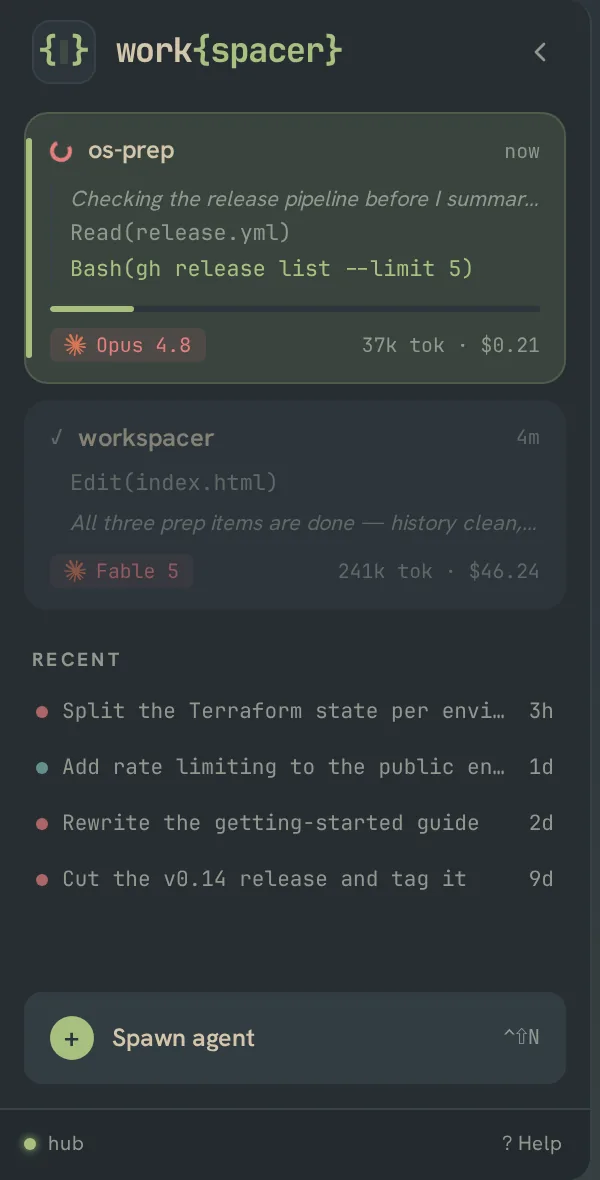
Sessions live in the daemons, not the window, so agents keep running across window restarts. On launch, if the hub already had a shared layout, work{spacer} mirrors that instead, since it is the shared copy of the same workspace.
custom app launcher
Define your own external app/site shortcuts in Settings ▸ Apps (config.apps). Each entry is a name, a url, and an optional icon (an emoji, or an http(s) URL that renders as a favicon image). They show up as launchable items in the command palette under the apps category, opening in a browser pane (app-mode webview).
attention and notifications
You run a lot of agents at once. Most of the time you're looking at one of them. work{spacer} keeps you honest about the rest: every agent's state is visible in the sidebar, the ones that are blocked on you get collected in a single inbox, and the OS taps you on the shoulder when an agent you're not watching needs a decision.
per-agent status in the sidebar
Each agent row in the sidebar carries a live status dot and a small set of numbers, all derived from the agent's session snapshot (the same source the agent pane's status bar uses, so they never disagree).
The dot color tracks the agent's ambient state:
- green: idle
- blue (busy/accent), thinking or streaming (working). The dot pulses (
wks-pulse, 1.6s) and gets a soft glow while working. - amber (warning), waiting on you: needs approval or waiting for input
- faint grey: stopped (no session)
If the agent has an open attention item, the dot is tinted to that item's kind instead and a tiny glyph rides next to it: ! approval, ? question, × error, ◷ stuck, ± big diff, ✓ finished.
Next to the dot is a context bar with a percentage. The number is the share of the context window used, colored green under 70%, amber from 70%, red from 90%. Hover a row and the tooltip spells out the rest: NN% context · N.Nk tok · $N.NN · model. Tokens and cost only show when the daemon has reported them.
the "N need you / N working" header
The "Agents" header in the sidebar shows one status pill:
N need you(amber, pulsing dot) when any agent has an open blocking item. "Need you" counts approval, question, stuck, and error items. Click the pill to open the Triage Inbox.N working(blue) when nobody needs you but agents are still running. "Working" counts agents whose ambient state is thinking or streaming.all clear(green) flashes briefly when you hit jump-to-next-attention and there's nothing waiting.
the triage inbox
The Triage Inbox is a right-side drawer you can open from any agent, so you never have to dig into a workspace to clear a request. Toggle it with ctrl+shift+i (action toggle-inbox), or click the "N need you" header pill.
It's a pure projection of the live attention feed. The feed is built in the renderer from each agent's session snapshot, so items appear and disappear as the underlying session changes. No live panes live in the drawer, so opening it can never remount a terminal, webview, or Claude viewer. Items are sorted most-urgent first by kind priority (approval 100, question 95, error 80, stuck 70, big diff 40, done 20), and within a tier the oldest floats up.
You clear it top-down, like email. The whole drawer is keyboard-driven while it's open and you're not typing in a field:
j/k(or arrows), move the selectiony/Enter, approve the selected approval,n, deny1–9, answer the selected question by option numbero, open that agent's full workspace (drops to piloting, closes the drawer)e, dismiss the items, snooze it (30 minutes, then it resurfaces)Esc, close the drawer
Every action addresses the agent by session id (approve / answer / message / write straight to the daemon), so the inbox can resolve any agent's request without owning that agent's pane. Approvals prefer the daemon's /approve endpoint and fall back to driving Claude's permission menu over the PTY; answers are written to the picker directly. Opening an agent counts as triaging it: that agent's items are cleared from the inbox (the live prompt still shows in its own pane, and a request raised after that resurfaces on its own).
When the inbox is empty you get "Inbox zero". The drawer header mirrors the sidebar: "N need you" (amber), else "N to review" (green), else "all clear".
jump to the next agent that needs you
Press ctrl+shift+space (action next-attention) to jump straight to the next agent in the attention feed without opening the inbox. It walks the sorted feed in priority order, starting just after the agent you're on, so pressing it repeatedly cycles through everything that wants your eyes (approvals, questions, stuck, error, done). If nothing needs you, the sidebar header flashes "all clear" for about a second.
OS notifications
When an agent you're not watching changes state, work{spacer} fires a desktop notification so you can babysit a fleet without staring at it. The notifier is driven off the session store on every ambient-state transition and fires at most one notification per meaningful transition:
- needs approval: title
<agent> needs approval, bodyAllow <tool> — <the command / file / url it wants>?so the notification is decidable without switching - waiting for input: title
<agent> is waiting for input, body is the actual question text (with a(+N more)marker when several are queued) - finished (working → idle), title
<agent> finished, body includes the session's cost so far; only whennotifyDoneis on
The agent label is its explicit name when you've set one, else the basename of its working directory. Clicking any notification, budget alerts and plugin-raised ones included, restores and focuses the window and jumps the renderer to that agent.
Suppressed for the watched agent. With onlyWhenUnwatched on (the default), no notification fires for the exact session you currently have on screen with the window focused. The renderer keeps the main process informed of which session is active as you switch agents.
Taskbar flash. On a needs-you event, when the window isn't focused, work{spacer} flashes the taskbar (the Windows "attention" signal). The flash stops as soon as you focus the window.
There is no tray icon or taskbar overlay badge today. Away from the desk entirely, the mobile PWA has background push for the same needs-approval / needs-input alerts. It works from the desktop app's sharing and from a headless workspacer serve alike, given the HTTPS option, though delivery is still being hardened.
the in-app notification center
Everything that fires (or would fire) an OS notification also lands in the notification center: a bell in the top bar with an unread badge, opening a dropdown history. New entries additionally surface as transient toasts bottom-right for a few seconds. Clicking a toast or a center row marks it read and navigates to its target: the agent that needs you, a plugin's pane, or an external URL. Events for the agent you're already watching are recorded silently (no toast), so the center doubles as a complete "what happened while I was away" log: agent needs-you/done transitions, budget crossings, system notices, and anything a plugin posts. Repeated alerts for the same condition replace their earlier entry instead of stacking, history is capped, and it survives an app restart.
Plugins post into it two ways: the notifications.post capability (always raises the clickable OS notification too) or a fire-and-forget notify.post bus event. The plugin guide has the payload fields (level, source, click targets, key, silent).
Nothing lands invisibly. An in-app notification that arrives while the window isn't focused, say a background plugin event or something posted from inside the app, escalates to a clickable OS notification automatically. That respects enabled and never fires for silent entries; clicking it focuses the window, marks the entry read, and jumps to its target. On the web remote the same escalation uses browser notifications, asking for permission the first time. While you're focused on the app you get the toast and no OS noise, since the thing is already in front of you.
notification config
The notifications block in config (Settings ▸ Notifications) has five keys, all booleans:
enabled(defaulttrue), master switch for OS notifications and taskbar flash. UI label "Desktop notifications".notifyDone(defaulttrue), also notify when an agent finishes (working → idle), not just when it's blocked. "Notify when an agent finishes".onlyWhenUnwatched(defaulttrue), suppress notifications for the agent currently on screen. "Only when I'm not watching that agent".sound(defaultfalse), play a sound; otherwise notifications are silent. "Play a sound".inAppToasts(defaulttrue), show the transient bottom-right toast popups. "In-app toast popups". Turning it off keeps the bell and the history. Turningenabledoff silences only the OS surface, leaving the in-app center working.
When enabled is off, the OS-side toggles are disabled in the UI; the in-app center and toasts keep working.
remote and multi-client
Because your sessions live in the background daemon rather than in any one window, you can watch and drive the same fleet from more than one place at once: the desktop app, the terminal app, your phone, a second PC, or a full web app in a browser. They all see the same agents, and a layout change on one mirrors to the others like tmux clients on one session. Most of the time you'll just use the desktop app; this section is about reaching your fleet from somewhere else.
remote sharing is opt-in
By default nothing about your fleet is reachable from off your machine, everything stays on localhost. Sharing is a runtime toggle: open Remote control (the phone icon in the sidebar header) and hit Start sharing. Two environment variables cover the launch-time cases:
WORKSPACER_REMOTE_SHARE=1forces sharing on from launch (useful for testing, or a machine that should always share).WORKSPACER_REMOTE_ADDR=host:port(optional) pins the address it listens on (default0.0.0.0:7895). Set it to your tailnet IP so it's only reachable over your private network, not the whole LAN.
When sharing is on, access is gated by a secret token (generated once and stored in your config dir). Anyone with the token-bearing URL gets full control, so treat it like a password.
You don't have to hand that token to every device. The workspacer CLI mints capability-scoped tokens that are enforced on every single call to the bus:
workspacer token create --scope view|triage|operator [--label "dana's phone"]
workspacer token list
workspacer token revoke <token-or-prefix>view: read-only. Fleet lists, session snapshots, transcripts, event streams.triage: view plus acting on attention. Approve/deny, answer, send a message, interrupt, push subscription. This is what the phone client needs to clear approvals; no spawning, no terminals, no git, no admin.operator: everything, same as the pairing token.
Scoped tokens fail closed: a method outside the token's grant set is denied (with an error naming the missing scope), and unknown methods are denied too. They take effect on the next connection, no restart needed. The original pairing token keeps working unchanged, as an implicit operator.
The intended transport is a Tailscale tailnet, not the open internet. The connection isn't encrypted on its own, so keep both devices on the same trusted private network, or use the one-tap HTTPS via Tailscale option in the share dialog, which fronts the hub athttps://<your-node>.ts.netviatailscale serve.
the share dialog (QR)
Open Remote control from the phone icon in the sidebar header, next to the notification bell.
- Sharing off: a Start sharing button binds the hub to your network on the spot, no relaunch needed.
- Sharing on: it shows a QR code of the ready-to-use URL, point your phone camera at it and tap, plus copy buttons for the URL and the token (masked behind a show/hide eye). Pick what the QR points at with the Full app / Mobile tabs.
- HTTPS via Tailscale: an Enable button runs
tailscale servefor you, so the QR and URLs switch tohttps://<node>.ts.net/…. This is what gives the mobile PWA a secure context, which installing it and push notifications require.
The same URL and token also show in the Hub status row, where the dot turns green once the bus is connected.
the web clients
Three browser clients, nothing to install on the remote device (though the mobile one is installable if you want it on your home screen):
- Mobile (
/m): a phone-first client that reads as a Fleet Manager, in five tabs. Fleet is the whole fleet grouped into managers and their crews, so a worker dispatched by a worker still nests under the top-most manager instead of disappearing. It filters to All / Waiting / In flight / Landed, each card split into a static identity row (project, task, role) that never moves while the agent works, and a separate state row (status, live tool line, model, context meter, cost) underneath it, with approvals and questions answerable inline, plus a recent/resumable rail below the list. Opening a card reaches its transcript: prose, collapsible work cards with their tool steps and diff counts, live workflow progress, per-turn changed-file lists, with a question dock above the composer and pills to switch model, effort, and permission mode mid-session. The transcript runs full-screen: the tab bar steps aside (the header's back button is the way out) and the chips row ducks while the keyboard is up, so it gets the pixels. You can also attach photos: the + button (or pasting an image) uploads it to the machine running the agent. Photos are re-encoded and size-capped client-side, land in a temp folder, and ride the message the same way desktop attachments do; with federation, the bytes land on whichever machine actually runs the agent. Waiting is the triage queue, sharing the desktop's attention router: approvals, questions, stuck turns and failed tools, in priority order, with snooze and dismiss. A finished turn or a large diff reads as landed work rather than a decision blocking you, so it surfaces in Fleet's Landed filter instead. Flows is the inspector: workflow runs broken out by phase and agent, the session's subagents, and usage (context, the 5-hour / 7-day / monthly rate-limit windows, tokens and cost). Briefs is a read-only view of every project's.workspacer/brief.md, the file the Fleet Manager keeps of what's in flight, where the project is headed, and what has landed. It is never edited from the phone, and it needs an operator-scoped token. Dispatch spawns a new worker. It's an installable PWA: add it to your home screen over the HTTPS/Tailscale option. Background push notifications (an alert when an agent needs you, even with the browser closed) work over HTTPS, against a headless server included, but delivery is still being hardened, so don't bet the farm on them. This is what the QR points at by default. - Scoped to your token. The mobile client asks the bus what your token may do the moment it connects, and gates itself accordingly. A triage token still approves and answers, but the spawn button is disabled with the reason shown rather than failing on tap. Full-access spawns are refused for remote clients regardless of tier; the hub strips the flag.
- Terminal mirror (
/remote): a lightweight client with the agent list, chat, approvals, and a live mirror of the agent's real terminal. Works offline over Tailscale. - Full app (
/app): the complete work{spacer} interface running in the browser, with full desktop parity. The desktop app serves it when sharing is on and a web build is present; the standalone server ships its own web build and serves it out of the box.
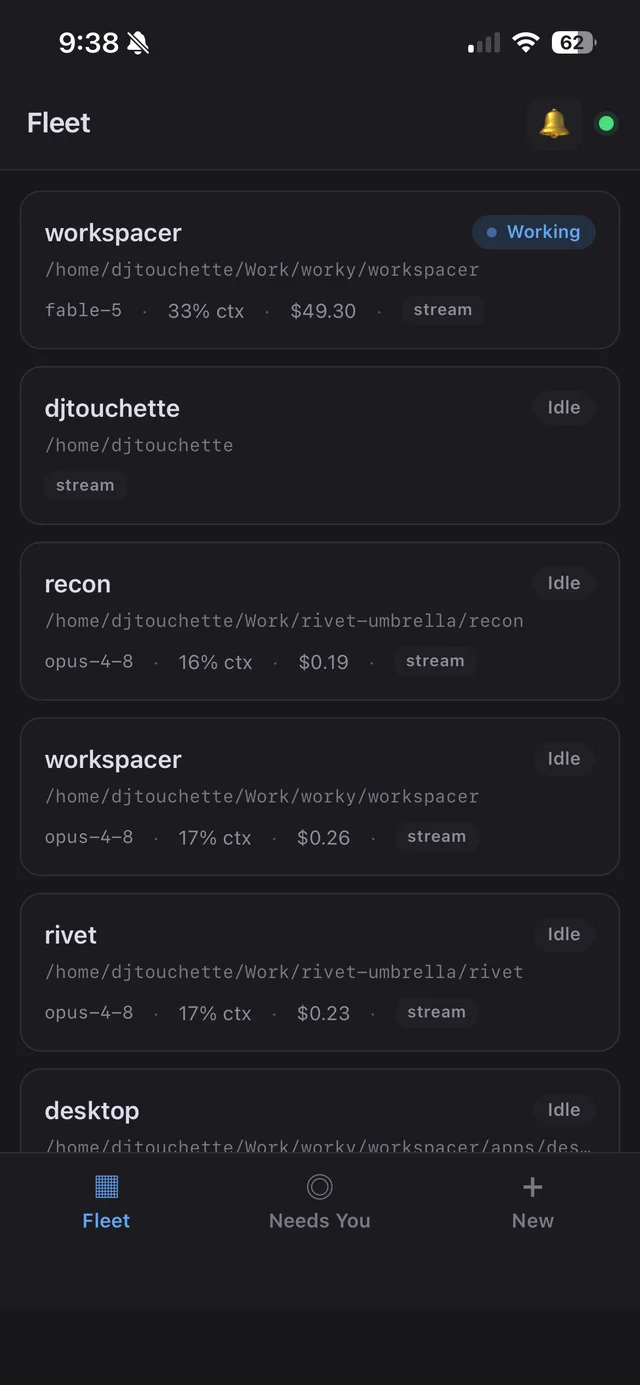
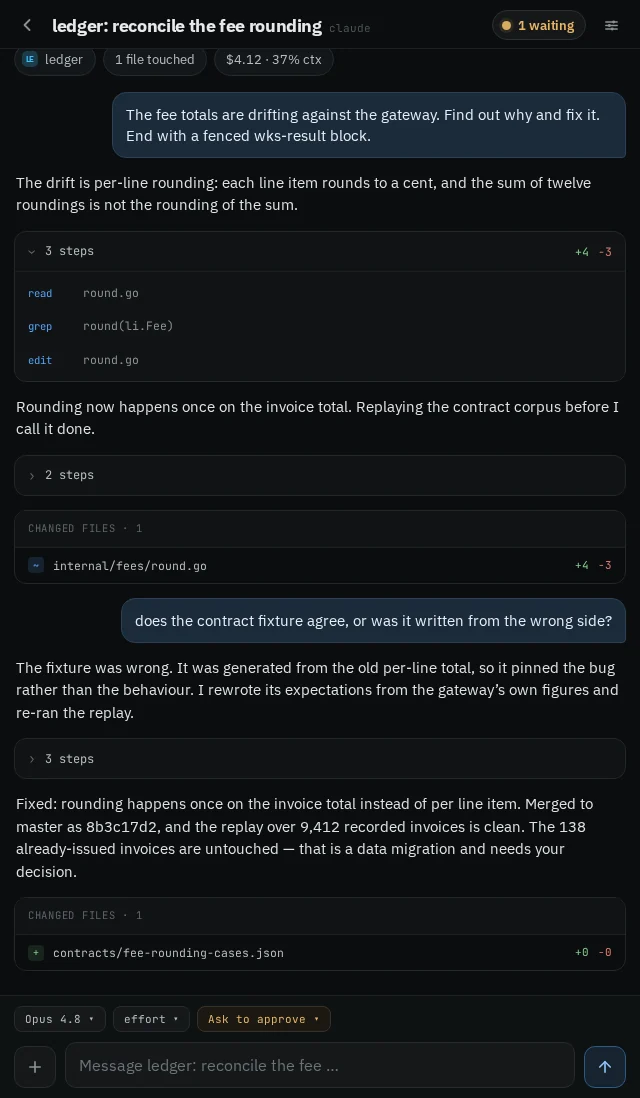
federate two machines (hub-of-hubs)
Everything above is about reaching one machine's fleet from other devices. Federation is the other direction: if you run work{spacer} on two machines (a desktop and a laptop, home and work), your hub can link to the other machine's hub and show both fleets in one UI. Remote sessions appear beside local ones with a small hub badge naming the machine; approvals, replies, and interrupts route to the right machine automatically; and when the other machine sleeps its agents don't vanish. They tombstone ("hub offline — last seen 2h ago") and come back live when the link returns.
Setup is one file. On the machine you want to see into, mint a token: workspacer token create --scope operator (or triage for watch-and-approve without spawning). On the machine you're looking from, write ~/.config/workspacer/peers.json:
[{ "name": "work-pc", "url": "ws://work-pc:7895/bus", "token": "<that token>" }]and restart the app. Use your tailnet hostname/IP, same as remote sharing. Federation inherits the same transport story and the same scoped-token enforcement, so the token you mint is the ceiling on everything the link can do.
- Every client sees the merged fleet: the desktop app, the full web app, the mobile PWA (whose push notifications then cover both machines through the one hub your phone is paired with), and the terminal client. The spawn dialog grows a Machine picker so you can start an agent on either box.
- Local things stay local, by design. A remote agent's files live on the other machine, so the terminal, git review, and editor panes don't offer themselves for remote sessions. Chat, approvals, and the inspector are the remote surface. A remote session's directory never grants any local filesystem access.
- Topology stays simple. named peers in a file, a tree (no meshes, no loops), and only the fleet topics cross the link, so a peer can't rearrange your layout, drive your UI, or see your plugins' internals.
- A peer's remote nodes are invisible, and silently so. Only
agent.*andworkflow.*cross a federation link, and no client asks a peer hub for its node list. So a remote worker node registered on the other machine is tracked by the hub that owns it and never appears in your merged fleet: no error, no tombstone, it simply isn't there. If you need to see or wake a particular hub's nodes, don't go through the federation link. Point a client at that hub directly, with "Connect to Server…" in the desktop's Remote Share dialog or by opening that hub's own/appURL. You're then looking at that one hub rather than the merged fleet, and its nodes are back.
what mirrors, and what stays put
- Layout mirrors. Your agent cards, tabs, and active tab are shared, so every client shows the same arrangement. With one person driving at a time, that just works; the last change wins.
- One card per agent. The same session never doubles up across clients, the desktop, the web app, and your phone all show one card for it.
- Terminals stream on demand. A live terminal is only mirrored to a client while that client is actually watching it, so you're not streaming build logs to a phone in your pocket.
- No window needed. Remote clients keep working even with the desktop app closed, the background daemons serve them on their own.
remote worker nodes (Fly Machines)
A remote node is a machine that can be switched off on purpose. It runs the workspacer daemons headless (the session daemon plus the headless brain) and dials your hub's bus as a capability provider, so its sessions appear in your fleet as ordinary sessions. Nothing about the transport is new here: to the hub, a woken node looks exactly like a brain running beside it.
The shape this is built for is one always-on hub and one or more workers that are asleep most of the time. The hub is small, cheap and never goes away, so a phone or a laptop always has something to talk to. The worker is the big machine, and it only runs while you are using it. A node's sessions live on the node's own volume, so they survive it being stopped and started again.
The hub tracks five states per node, and keeping them apart is the point of the feature. available: its provider is on the bus and answering. waking: the hub has asked the Fly API to start it and is waiting for the provider to register. stopping: it was asked to shut down and is draining. stopped: it is off, deliberately, one button away from running. unreachable: the hub does not know how to get a working node out of this and a person should look. A machine that is asleep on purpose is not a broken one, and showing both the same way was the failure this replaced.
None of it exists on an ordinary install. With no node registry the hub does not register the node methods at all, and every client shows exactly what it showed before.
setting up a remote node
The ordered procedure is deploy/fly/RUNBOOK.md in the repo, next to the two per-machine runbooks and the Dockerfiles it deploys. That runbook is the source of truth and has been walked end to end as a dry run; what follows is the shape of it, so you know what you are signing up for before you open it.
The order is not hub-then-node. Each machine is a prerequisite for the other, in opposite directions: the node's secrets name the hub, and the hub's registry needs a Fly machine id that only exists once the node has been deployed. So it is hub, node, then back to the hub once. That last step is the one people think they have already done.
- Pre-flight.
./deploy/fly/preflight.shbuilds both images, runs the bootstrap assertions on the host and again inside the image, and then boots both entrypoints for real until each reportsBOOT COMPLETE. It needs no Fly account, no tailnet and no money, so you can do it a day early. The boot stage is there because a build proves assembly and does not prove boot. - Two Tailscale auth keys, and a payment method on the Fly org. The machines find each other over a tailnet rather than the open internet. Both keys are reusable and tagged, and neither is ephemeral: an ephemeral device is dropped from the tailnet when it goes offline and gets a new address when it rejoins, and the hub's address is the one the node dials.
- Create both apps with
fly apps create. Notfly launch, which allocates public IPs that neither app should have. - Mint a Fly API token scoped to the node's app:
fly tokens create deploy --app <node-app> --expiry 2160h. Set an expiry, because the default is twenty years. Scope it to the node's app so the blast radius is one app's machines. There is no start-only or stop-only Fly token, so treat this as full control of that app. - Deploy the hub with its Tailscale key and that Fly token as secrets. Its first boot mints the hub's own pairing credential and prints it, along with the MagicDNS name that becomes the node's bus URL. Write both down: the credential is what your clients pair against, and the bus URL is one of the node's secrets two steps later.
- Mint the node's bus token on the hub:
workspacer token create --label fly-node --scope operator. It is worth knowing what that token is: an operator-tier token authenticates as trusted on the bus, which includes waking and sleeping machines, so anyone who reads it off the node can spend your money. It is still the right token here because it can be revoked and the host pairing token cannot, but do not read "scoped" as "limited". - Deploy the node with its own Tailscale key, the hub's bus URL and that token. Note the machine id it comes up with. The stock image is workspacer and nothing else, with no language toolchains on it; to give it your project's toolchain, build a small image from the base one and deploy that instead.
- Back to the hub to write the registry file below, then restart the hub.
- Log in on the node. Claude Code's OAuth, your git credentials and your first clone are interactive and happen once, over
fly ssh console. They live on the node's volume and survive a stop.
The registry file. On the hub, ~/.config/workspacer/nodes.json is a JSON array with one object per machine, mode 0600:
[
  {
    "id": "fly-node",
    "label": "Fly node (ord)",
    "fly": {
      "app": "workspacer-node",
      "machineId": "<the id from fly machine list>"
    }
  }
]
id is your own handle for the machine (letters, digits, - and _), not the Fly machine id; it is what every bus call names. label is what the UI shows. fly.app and fly.machineId must be both present or both absent, because half a coordinate is a node that silently never wakes. An entry with no fly block is a node the hub can watch but not switch, and such a node is never reported as stopped: without the API the hub genuinely cannot tell "off on purpose" from "broken", and guessing is the thing this is here to avoid.
The Fly token is deliberately absent from that example. The hub looks for it in three places, in order: the entry's own token, the contents of the file named by tokenFile, then $FLY_API_TOKEN. For a hub deployed on Fly the environment is the right answer, because the credential then stays off the volume and out of any snapshot of it, and rotating it is a fly secrets set rather than an edit inside a running machine. It is never a command-line flag, since a flag would put it in /proc/<pid>/cmdline, and never in config.yaml, which is credential-free by design so that reading it can stay in the view tier.
The registry is read once, at hub startup. Editing nodes.json takes a hub restart, unlike jobs.json. The boot log says whether it worked: nodes: 1 node(s) registered … (1 wakeable). (0 wakeable) means the token did not resolve, and a hub in that state can report the node but never start it. Two other lines to read: the hub warns if the file is readable by anyone but you, and it warns if it is supervising its own brain while holding a node registry, because the liveness probe cannot tell a local brain from a remote one and every node state would then be wrong. An always-on hub for remote nodes runs with --brain-scope off.
connecting a node, and putting it back to sleep
The node strip lives in the desktop sidebar, in /app, and on the mobile client's Fleet tab. It renders nothing at all when the hub has no registry, when the registry is empty, or when every node is connected and there is nothing you could do about any of them, because a permanent "all good" strip is chrome nobody asked for. wks-tui has a node surface of its own behind the leader key; it lists the machines and can connect one, and it cannot yet put one to sleep.
Connect starts a stopped machine through the Fly Machines API and waits for the node's provider to register, up to about ninety seconds. The row reads as progress while that happens rather than as a failure. If the machine comes up and the provider never appears, the row goes to unreachable with a sentence saying so.
Put to sleep stops a running one. The hub sends SIGTERM with a drain window it chooses itself, never one the caller names: a caller who could pick the signal could pick SIGKILL, which skips the session daemon's flush and denies the node the chance to record why it stopped. A stop that destroys its own evidence is not a sleep. The row reads shutting down until the machine is actually off, and if it has not stopped inside the window the hub says it may still be running rather than claiming it is off.
Both verbs need host authority: the host token, or an operator-scoped pairing token. The view and triage tiers can read node state, which is the whole reason it is worth showing on a phone, and they get a disabled control with the reason printed beside it rather than a button that dies on tap. A plugin token is refused outright, because no consent dialog can honestly price a bill or somebody else's lost work. Reading the registry discloses no Fly token, no app name, no machine id and no API endpoint: clients get a separate projection built by naming what goes into it, not the stored record with fields stripped out.
A failed wake now stops itself. If the hub starts a machine and its provider never registers, the hub stops the machine again rather than leave it running and billing, and the row says whether that stop worked. It is the only unattended stop in the system, and it is fenced: it fires only for a wake this hub issued, only when the provider never registered, and never against a node whose provider is answering. There is no idle timer over a working machine, so nothing will switch off a node you are typing at.
limits worth knowing
- Waking costs money. Each wake starts a billable machine and the meter runs from boot until something switches it off. Do not wire it into a job or a polling loop unless you mean to spend money on a schedule.
- Sleeping is not the harmless direction. It ends whatever is running on the machine: an agent mid-turn, a build, an unflushed transcript. The shutdown is graceful and it is still not a pause. That is why it is gated as tightly as waking rather than treated as the safe half of the pair.
- A stopped machine is not free. Its volume bills continuously, with a small charge for the stopped machine on top. Sleeping saves you the compute, which is the large part of the bill and not all of it. The runbook has a cost table with the figures it was written against.
- Deploying is yours. work{spacer} starts and stops a machine that already exists. It never creates one, never deploys to one and never destroys one. The Dockerfiles and the runbook are in the repo; running them belongs to your own infrastructure, not to the app.
- The registry is static. Nodes come from
nodes.jsonand nothing adds itself. A node cannot register by connecting, and there is no UI for editing the file.
a server with no desktop: workspacer serve
You can also run the whole fleet on a machine that never opens a window: a home server, a VM, a box you only reach over Tailscale. Each release ships a standalone server bundle (workspacer-server-<os>-<arch>.tar.gz, zip on Windows) with the binaries and the web build. Two lines:
tar xzf workspacer-server-linux-x64.tar.gz
./workspacer-server/workspacer serve
workspacer serve starts and supervises the session daemon and the hub (with a headless brain provider standing in for the desktop app, so spawning, snapshots, and the manager wakes work with no window anywhere), then prints the client URLs and the pairing token: the phone client at /m, the browser client at /remote, and the full app at /app, served from the bundled web/ directory with no flags. Pass --json for a machine-readable banner. It runs in the foreground by design, so put it under systemd or tmux.
What the headless brain does not do. It wakes a manager when a worker finishes, escalates needed authority or a decision, blocks on an approval or question, and on a two-minute catch-up sweep that recovers a wake the event stream dropped. Its fleet workers receive the same fixed wks-escalation contract as desktop-dispatched workers; ordinary panes and manager sessions do not. It still declines caller-authored resultSchema, because headless has no general validator for an arbitrary schema and will not accept a contract it cannot validate. Dispatch templates (template), per-spawn Library MCP servers (mcpItemIds) and worktree isolation (worktree) are declined headless too, and a worktree spawn the brain answers just runs in the working directory it was given. Two snapshot fields the desktop enriches, conversation and liveCwd, are fetched on demand instead of folded into every state tick.
By default it binds loopback only. Reaching it from another device is an explicit opt-in: workspacer serve --host 0.0.0.0 (or, better, your tailnet IP), always token-gated. The server never runs without auth. The same warnings as desktop sharing apply: keep it on a private network like Tailscale, never the open internet.
Plugin panes in a remote browser. A plugin's UI has to be framed inside /app, and a browser gives a frame served from the app's own origin full access to the app document. A hub-served plugin framed at that address is therefore isolated to an opaque origin, which costs it its bus connection. The fix is a second origin routed to the same hub: workspacer serve --plugin-origin https://<host>:8443. The pane then keeps its own origin and connects with its per-pane identity token while remaining unable to touch the app document. This is browser isolation, not a filesystem/plugin grant boundary.
State it will not silently recreate. On a first run serve mints the pairing token at <config>/workspacer/remote-token and registers Claude Code's hooks in ~/.claude/settings.json for you. On a later run, if that token file has gone missing while the rest of your config directory is still there, it refuses to start rather than mint a new one: a fresh token is a fresh identity, and quietly adopting it would refuse every phone, browser client and federated peer already paired against the old one while the server looked perfectly healthy. Restore the file, pass the real value with --token/$HUB_TOKEN, or accept the new identity deliberately with --allow-new-token. (The hook registration runs on every start and is idempotent; --no-claudemon-init turns it off if that settings file is yours to manage.)
Running a second stack. serve refuses ports that are already busy rather than killing whatever holds them, so the only way to run a second stack beside a live one is to move claudemon's ports — and that starts a second session daemon. It would otherwise open the same state.db as the first, and two daemons on one session store share every session and event row: the newcomer lists the live stack's agents as its own resumable sessions. So changing --claudemon-api-port or --claudemon-hook-port now also requires --claudemon-db-path (or an XDG_DATA_HOME of its own). A single stack on the default ports is unaffected and keeps sharing one session store with the desktop app, which is deliberate.
Alongside serve: workspacer status reports what's running on the workspacer ports, workspacer token mints the scoped tokens described above, and workspacer install-cli puts the binary on your PATH. The desktop app bundles the same CLI; "Install workspacer Command" in the palette (or Settings → Command Line) installs it.
the desktop app is a client too
You can run both the desktop app and a headless server, and they cooperate two ways:
- Same machine: it adopts. If a
workspacer serveis already running when you open the desktop app, the app detects the healthy daemons and adopts them instead of spawning its own. No duplicate daemons, and quitting the app never kills a server it didn't start. The Remote Control dialog notes when you're on an adopted server (and, since an adopted server keeps its own binding, tells you the one-line fix if it's loopback-only and your phone can't reach it). - Another machine: Connect to Server… From the command palette (or the Remote Control dialog), give it the server's URL and token and the app relaunches as a pure client of that remote fleet, live terminal bytes and all. Disconnecting relaunches back to your local stack.
jobs
A job is work the hub does on your behalf without you being there: spawn an agent with a prompt, run a shell command, or call a bus capability, on an interval, at a time of day, once, or on demand. Jobs live in the hub, not the window, so they keep firing while the desktop app is closed and they work exactly the same on a headless workspacer serve. You create and change jobs by asking an agent, in any chat: say what you want to happen and when, and the agent writes the spec and proposes it (see below). There is no form for it. You watch them in Settings → Jobs (Ctrl+,) on the desktop, or the Jobs view in the native app, where each row shows its next run, its last result, and an expandable run history, and where you approve, pause, run or remove them. There is also workspacer jobs in the terminal.
triggers
Every job has exactly one trigger:
{"kind":"interval","everyMinutes":60}: every N minutes (minimum 1). Intervals re-anchor from now whenever the hub restarts.{"kind":"daily","at":"09:00","days":[1,2,3,4,5]}: at a time of day, hub-local.daysis a weekday mask with0= Sunday; omit it for every day.{"kind":"once","once":"2026-09-01T09:00:00Z"}: an RFC3339 timestamp. The job disables itself when it fires, so a failed run can't refire forever. A time that has already passed still fires once, because "run this at 9" set at 9:05 shouldn't silently mean never.{"kind":"manual"}: only ever runs when you press Run now.
The scheduler ticks every 30 seconds, so triggers are minute-precision by design. A due time that passed while the machine was asleep fires once on wake and then re-anchors, with no catch-up storm. If a job is still running when its next fire comes due, that fire is skipped, never queued, because a backlog of queued agent spawns would burn quota for nothing.
actions
And exactly one action:
- spawn: start an agent and send it a prompt.
cwdandpromptare required,provider,model,effortandpermissionModeoptional. The agent appears in your fleet like any other. - shell:
command(run through/bin/sh -c, orcmd /Con Windows) and an optionalcwd. - call: one bus capability,
methodplus optionalparams.
A job's spawn goes out over the bus exactly like a remote spawn, so model ceilings and provider-native permission choices use the same path. Workspacer adds no separate child-grant clamp. Runs are capped at 15 minutes, and a failed run raises a notification.
run code first, then hand it to the agent
A spawn action can run context steps before the agent exists. Each step is a shell command (or a bus call) whose output is substituted into the prompt at {{output}}, or at {{output.1}}, {{output.2}}… when there are several. If the prompt mentions neither, the outputs are appended as fenced blocks rather than dropped. Up to four steps, each capped at 12,000 characters (an oversized one is elided in the middle, so both what ran and how it ended survive).
A step can also call the whole thing off, which is the more useful half. Each one carries three optional guards:
skipIfEmpty: no output means nothing happened, so don't wake a model. For acallstep, JSON's several spellings of nothing count as empty too ({},[],null,"").skipUnlessMatch: a regular expression; the agent spawns only if the output matches. An invalid pattern is refused when you save rather than at 3am.ignoreExitCode: treat a nonzero exit as data rather than failure, for the guards that report "nothing found" that way (grep, most test runners). Only an exit code is forgiven. A timeout or an unstartable command still fails the run loudly.
Nothing is spawned until every step has run and every guard has passed, so a quiet night costs a shell command instead of an agent, a model call and a session to clean up. A guarded run records as skipped with the reason and, unlike a failure, stays silent, since a guard that fires nightly must not notify nightly. A healthy guarded job's history is mostly skips with the occasional real run in it.
{
  "name": "Failing tests → agent",
  "enabled": true,
  "trigger": { "kind": "daily", "at": "07:00", "days": [1, 2, 3, 4, 5] },
  "action": {
    "kind": "spawn",
    "spawn": {
      "cwd": "/home/you/work/api-gateway",
      "provider": "claude",
      "prompt": "Last night's test run:\n\n{{output}}\n\nTriage these failures and propose a fix for each.",
      "context": [
        {
          "kind": "shell",
          "shell": { "command": "go test ./... 2>&1 | tail -60" },
          "ignoreExitCode": true,
          "skipUnlessMatch": "FAIL"
        }
      ]
    }
  }
}
Most mornings that job runs go test, sees no FAIL, and stops without spending anything. On the mornings something broke, an agent is already reading the failures when you sit down.
acting on an idle fleet
The hub publishes one read-only signal, fleet.quiescence, answering whether this machine's fleet is genuinely at rest. It exists so a job can act on "nothing is happening here" without you having to reimplement the safety logic in a shell script. Read it from a terminal or a script with workspacer fleet quiescence, which is exit-code gated: 0 at rest, 1 not at rest, 2 could not ask. Those last two are different answers and only the first two are knowledge, so a script that acts on success should never treat 2 as 1.
The rule is refuse when unsure. It answers yes only when every one of these holds, and has held continuously for a dwell of several minutes:
- every session that has not stopped is ready for input. A session that is spawning or resuming has not reported a state yet and does not count as idle;
- no session has a background task running, which is what a
run_in_backgroundshell (a dev server, a watcher, a poll loop) rides on: the session mode deliberately stays idle for those, so the count is the only sign they exist; - nothing is waiting on a permission decision or an answer to a question;
- no terminal is open. Nothing anywhere in work{spacer} tracks whether a terminal's shell is running a long command, so a live terminal blocks on presence alone, and keeps blocking until it is closed;
- no bus client is in use. Connection presence is not the test, or a phone with the mobile client parked in a background tab would hold the machine up forever; a client counts as in use until it has been silent for several minutes;
- no job is due to fire soon, and none is running;
- every federated peer is reachable and its own sessions are at rest. A peer that cannot be reached blocks: unreachable is unknown, not quiet.
When the answer is no it comes with a blocker per reason, each naming the session, job or peer responsible and saying what it is doing, so an unexpected no is something you can go and deal with rather than a bare false.
Two limits worth knowing. A shell job does not count as a job about to fire, because a shell action is how you run this check, and a poller that counted itself would block forever; work you need protected belongs behind a spawn or call action. And an agent whose process has wedged mid-turn never reports its turn ending, so it reads as busy indefinitely and holds the machine up. That is the direction this is meant to fail in: it costs uptime rather than work.
Wiring it up is an ordinary job. This check powers nothing down by itself; the script is yours, and what it does with a yes is entirely your call. The one machine work{spacer} can switch off on its own is a registered remote worker node, and that is a button somebody presses rather than anything a quiescence answer triggers.
{
  "name": "Power down when the fleet is quiet",
  "enabled": true,
  "trigger": { "kind": "interval", "everyMinutes": 5 },
  "action": {
    "kind": "shell",
    "shell": { "command": "workspacer fleet quiescence --quiet && /opt/wks/power-down.sh" }
  }
}
Poll as often as you like; the check is cheap and the dwell, not your polling interval, is what decides how long the fleet must have been quiet. Use --json in a script that wants the blockers, and log them: the fastest way to find out what is really keeping a machine up is a week of "not at rest" reasons.
Ask an agent for this one. Tell it the path to your own power-down script and it proposes the job above with that path in place of /opt/wks/power-down.sh; like every proposal, it arrives switched off until you approve it. An agent without a script path from you should not propose it at all, because a job that runs a script nobody has written is not a job.
writing a job spec by hand (or having an agent write one)
There is no editor form: a job is just JSON, and the shape below is the whole language, enough for you (or the agent you ask) to write one from scratch. Anything the hub doesn't accept is refused at save time with a message naming the problem. The // notes below are annotations for you, not syntax: JSON has no comments, so strip them.
{
  "id": "",                       // omit or leave blank to create; the hub mints one
  "name": "Human-readable name",  // required
  "enabled": true,
  "proposedBy": "",               // set by the hub on an agent's proposal;
                                  // while non-empty the job never runs
  "replaces": "",                 // on a proposal: the id of the job it would change
  "host": "",                     // "" runs inline; local | any | a peer name
                                  // submits a work-queue item (spawn/shell only)
  "priority": 0,                  // queue priority, higher first; only with host
  "trigger": {
    "kind": "interval",           // interval | daily | once | manual
    "everyMinutes": 60,           // interval: >= 1
    "at": "09:00",                // daily: HH:MM, hub-local
    "days": [1, 2, 3, 4, 5],      // daily: 0 = Sunday .. 6 = Saturday; omit = every day
    "once": "2026-09-01T09:00:00Z" // once: RFC3339
  },
  "action": {
    "kind": "spawn",              // spawn | shell | call
    "spawn": {
      "cwd": "/abs/path",         // required
      "prompt": "What the agent starts with", // required
      "provider": "claude",       // claude | codex | copilot | opencode | pi
      "model": "",                // blank = the provider's default
      "effort": "",               // provider effort level, if it has one
      "permissionMode": "",       // provider-native permission mode
      "context": [                // optional, max 4, run before the spawn
        {
          "kind": "shell",        // shell | call
          "shell": { "command": "git log --oneline -20", "cwd": "" },
          "call":  { "method": "sessions.list", "params": {} },
          "skipIfEmpty": true,    // no output -> skip the run, spawn nothing
          "skipUnlessMatch": "",  // regex; spawn only on a match
          "ignoreExitCode": false // nonzero exit is data, not failure
        }
      ]
    },
    "shell": { "command": "…", "cwd": "" },
    "call":  { "method": "…", "params": {} }
  }
}
Fill in only the branch you're using: one trigger.kind and its fields, one action.kind and its payload. A context step likewise carries either shell or call, matching its own kind. The rules the hub enforces:
- a job needs a
name; a spawn needscwdandprompt; a shell needs acommand; a call needs amethod; - a
call, as an action or as a context step, may not targetjobs.*(that would recurse into the job system itself) orhub:<peer>/(job state doesn't federate; to run a spawn or shell job on another machine, sethostas described below); - at most four context steps, and a
skipUnlessMatchthat doesn't compile is rejected; hostis"",local,anyor a federation peer name (letters, digits,-,_),priorityis an integer, and acallaction may not carry ahost.
running a job through the work queue
By default a job runs inline, the moment it fires. Set host on a spawn or shell job and it goes through the host work queue instead, which starts work only when a slot of its kind is free and the machine is not under memory, CPU or disk pressure. "host": "local" queues it on this machine; a peer name queues it on that federation peer (it must be configured, connected and dispatch-enabled); "any" picks the best eligible host, the same way queue.targets ranks them. priority (default 0) orders it in that queue, higher first.
Context steps still run here, first, and their output is rendered into the prompt before the item is submitted, so the guards still cost nothing when there is nothing to do. The run's history row then reads queued <item id> on <host>; the item itself is followed in the Hosts view. While an item this job submitted is still queued or running, the next fire records skipped, and if the peer holding it cannot be asked, that counts as still running. A submission whose outcome is unknown (the peer dropped mid-call) is reported as an error and is never retried by itself. A shell job queued on a peer is accepted there only when that peer was paired with its own host credential.
Specs are stored by the hub at <config-dir>/workspacer-hub/jobs.json, mode 0600, with run history beside it in jobs-history.json. They do not live in your library or your layout. See where everything goes for why the hub keeps its own directory. To install a spec written elsewhere: have an agent propose it, run workspacer jobs add -f <file>, or edit jobs.json yourself, which is the next section.
editing jobs.json by hand
jobs.json is a file you are meant to be able to open in an editor. The hub re-reads it by itself: the scheduler polls the file on the same 30-second tick it uses to fire jobs, so a saved edit takes effect within half a minute, on a running hub, with nothing restarted and no window open. It behaves the same under workspacer serve, because the watching happens in the hub rather than in the desktop app.
- Open
<config-dir>/workspacer-hub/jobs.json. On Linux that is~/.config/workspacer-hub/jobs.json. If it does not exist yet, create it with{"jobs": []}and add to that. - Add, change or delete an entry in the
jobsarray, in the shape above. Save the file. - Wait up to 30 seconds.
- Check that it took.
workspacer jobs listprints each job with its next run; Settings → Jobs shows the same thing. A job you added by hand comes back with anidfilled in, and that is the hub telling you it has read your edit.
Three fields are filled in for you so you never have to type them: id, createdAt and updatedAt. Leave id out and one is minted; leave two rows carrying the same id, which is what copy-pasting a block gives you, and they are split apart. All three are written back into the file. The one thing not guessed for you is enabled, which defaults to false when it is missing, so a new job needs "enabled": true or it will sit there doing nothing.
A mistake costs nothing. If the file does not parse, the hub keeps the schedule it is already running, logs what was wrong, and looks again on your next save. The same holds if the file briefly goes missing, which is what several editors do while saving. A single row the validator refuses is dropped on its own, with a log line naming it, and the other jobs keep running. Stopping everything is therefore something you have to mean: a file that parses, with an empty array, {"jobs": []}.
Editing by hand and changing jobs from the app mix safely. Every hub write re-reads the file first, so approving or pausing one job from the app lands on top of what is on disk rather than on top of a snapshot from startup, and a job you typed into your editor a minute earlier is still there afterwards. Only the job you actually changed is re-anchored, so renaming one job does not quietly push every other interval job's next run forward.
Point at a script rather than inlining one. A shell action's command already goes through /bin/sh -c, so the tidiest thing to put in it is the path to a script: keep the script in ~/.workspacer/scripts/ and write "command": "~/.workspacer/scripts/nightly-tests". (On Windows the command goes through cmd /C, so write %USERPROFILE%\.workspacer\scripts\nightly-tests.) A script is a file you can run, diff and review on its own; a shell blob wedged into a JSON string is none of those, and its quoting is where hand-written specs usually go wrong. Nothing in the spec knows about that directory and nothing needs to: it is a convention, not a feature.
One more time, because it is the mistake that gets made most: JSON has no comments. The // notes in the reference block above are annotations for you. Copying them into the file makes it unparseable, and an unparseable file is a file the hub ignores.
jobs.jsonis executable configuration, and writing it is equivalent to writing a crontab. A shell action is a command run as you, on a timer, with nobody watching; a spawn action starts an agent the same way. No new capability is involved, since anything with a shell could already do this. Two things genuinely are new next to a session you are sitting in front of: it persists, and it runs unattended. Treat editing this file the way you treatcrontab -e, and be as careful about what you paste into it.
the command line
A spec written anywhere, by hand or by an agent you asked, becomes a real job with one command:
workspacer jobs add -f nightly-triage.json     # or: … -f -   to read stdin
workspacer jobs list                           # next run + last result per job
workspacer jobs show <id>                      # print one spec back as JSON
workspacer jobs history <id>                   # recent runs, newest first
workspacer jobs run <id>                       # fire it now
workspacer jobs approve <id>                   # arm an agent's proposal
workspacer jobs enable <id> | disable <id>
workspacer jobs remove <id>
Ids can be shortened to any unique prefix. The spec is validated locally before it's sent, so a typo tells you what's wrong instead of failing as a connection error. Point it at another machine with --host/--hub-port, and at a specific credential with --token (it otherwise reuses the pairing token in your config dir). --json prints raw output for scripting.
agents write jobs; you approve them
Agents ship with a jobs skill, so in any chat you can ask for "a job that checks the nightly build every morning and wakes an agent if it failed" and get one. An agent with the workspacer tools at the operator tier can read your jobs (list_jobs, job_history), run or delete an existing one, and propose new ones (propose_job). It cannot install one. A proposed job is saved disabled and stamped with a proposedBy name; the hub refuses to schedule it and refuses run on it, and it stays that way until you approve it, in Settings → Jobs or the native Jobs view (proposals sort to the top with an Approve button) or with workspacer jobs approve. You get a notification when one arrives.
Changing a job works the same way. The agent proposes the whole new spec with "replaces" set to the existing job's id. Nothing changes until you approve it; then the job takes the new name, trigger and action in place, keeping its id, its run history and whether it was paused. Removing a job withdraws any change still waiting on it.
The reason for the split: a job is argv that runs unattended, on a schedule, indefinitely. Anything that talks its way into an agent, a poisoned README or a hostile issue comment, could otherwise buy itself a nightly foothold. There is no agent-facing tool for the ordinary write, so an agent's suggestion always lands in a review queue rather than in your crontab. Read the trigger and the action before approving; that click is the whole security boundary.
who can manage jobs
The jobs.* capabilities are host-authority only: the desktop app, the web app on a full-control pairing, the workspacer jobs CLI, and operator-tier agent tokens. Plugin tokens and view/triage tiers are refused at call time and see no job tools at all. jobs.list is gated as tightly as the writes, because the list discloses your prompts and shell commands. Operator-tier agents are the half-exception described above: they hold the read side and jobs.propose, never jobs.upsert.
limit-aware routing
A subscription is a budget with a clock on it. If every agent you dispatch runs on the same premium model, you spend one provider's allowance to zero while a second sits idle, and you find out at the worst moment. Limit-aware routing is the hub's answer: it reads how much of each provider's allowance is actually left, resolves the kind of work you are dispatching into a concrete model and reasoning effort, and moves work away from a provider whose window is tight.
The mechanism is one indirection. Whatever dispatches work names a role (scout, implementer, reviewer, judge and so on). A matrix resolves the role to a capability (cheap, balanced, frontier …), and a profile resolves the capability to a real (provider, model, effort). Between those two steps the hub reads the live usage report and picks a routing mode that can move the capability up or down first. Nothing outside the matrix names a model, so when a vendor renames one you edit a single file.
One bus method exposes it, routing.select, and it is read-only: it answers a question and starts nothing. An agent holding the workspacer tools at the operator tier sees it as select_model and passes the answer to spawn_agent itself. There is no UI for the matrix, and the reason is in the last paragraph of this section.
the matrix file
Everything below is one YAML file the hub owns, beside jobs.json:
<config-dir>/workspacer-hub/routing.yaml # ~/.config/workspacer-hub/routing.yaml on LinuxThe shipped matrix is compiled into the hub binary and written to disk on first run, comments and all, so the file you open is also its own reference manual. That copy is a starting point rather than the source of truth: your file is deep merged over the compiled-in defaults, key by key. Anything you leave out still resolves, and a release that adds a new role or capability works against a file you wrote months earlier. The merge cannot delete, which is deliberate for a policy file: to take an entry out of service write enabled: false rather than removing it.
Saving applies it. The hub hashes the file every 30 seconds, so a retuned threshold, a switched profile or a new ceiling takes effect within half a minute, on a running hub, with nothing restarted. A mistake costs nothing. A file that cannot be read, or that does not parse, leaves the running matrix exactly as it was and logs what was wrong, so a half-typed save cannot disarm routing. Every key of yours that changes a shipped default is named in the log, and so is every key that matches nothing in the defaults, which is where a misspelled block name turns up. Model ids are checked against what your installed CLIs actually serve, so a renamed model is reported at load rather than discovered at spawn time.
Delete the file and it stays deleted: a marker beside it records that the offer was made, and the hub keeps running on the compiled-in copy, so nothing breaks and you only lose the comments.
active_profile, and why mixed is the default
active_profile picks which profile resolves capabilities. Three ship:
mixed(the default) for people with both a Codex and a Claude subscription. Codex builds and diagnoses; Anthropic reviews and adjudicates.codex_onlyfor one Codex subscription.anthropic_onlyfor one Claude subscription.
mixed is the recommendation whenever both subscriptions exist, and it earns that for two separate reasons. It draws two allowances down in parallel instead of exhausting one. And it prefers a different model family for review: a reviewer from a different family does not carry the implementer's blind spots. The second reason holds even when nothing is scarce, which is why the recommendation is not only about capacity.
That preference is not a guarantee. Every capability under mixed names both families — one as the primary pairing and the other in an ordered alternatives: list — and when the primary cannot be used (its allowance is red, its provider is conserving, its row is switched off) the router takes the first alternative that can be and names the fallover in the decision's reasons. So a codex outage can legitimately land a mixed reviewer back on codex: the matrix prefers a different family for review and says so when it could not.
A single-family profile has nowhere to fall over to, and neither profile can rely on the pairing alone, so both compensate with freshness. Every profile sets fresh: true on its review capabilities, and in a single-family profile that flag is the only thing making the reviewer independent. fresh means the reviewer gets a new session: the ticket, the acceptance criteria, the diff, the relevant source and the test results, and not the implementer's reasoning history. A reviewer that inherits the implementer's chain of thought is not reviewing it.
The flag is enforced, not advice. A spawn that declares a role or a capability the active profile marks fresh: true may not also ask to resume an existing session: the hub refuses the call and says which session it would have inherited. It refuses rather than quietly dropping the request, because a dropped resume would start a new session the caller believes is a continuation. A spawn that declares neither a role nor a capability makes no freshness claim and resumes normally, and fresh: false on the profile you are actually using is honoured. Choosing what to hand a fresh reviewer instead is still the dispatcher's job.
what each block is for
The file's own comments cover every key. This is the map, so you know which block to open.
rolesmaps a kind of worker to a capability. These names are the vocabularyselect_modelaccepts. Edit it to change what a kind of work is worth without touching a model name. (supervisoris listed for completeness and is not consulted yet: the Fleet Manager's own model is picked in Settings before there is a manager to ask.)capabilitiesis the vocabulary itself. Adding a name here does nothing until every profile resolves it.capability_rankssays how strong each capability is, which the list cannot:revieweris listed afterfrontierand is cheaper than it. Only ceilings read these, and an unranked capability cannot be compared, so a ceiling clamps it rather than waving it through. Edit it whenever you add a capability.profilesresolves each capability to{ provider, model, effort, fresh, enabled }. Effort ladders are per provider and are not interchangeable (Claude takeslow|medium|high|xhigh|max, Codex takesminimal|low|medium|high|xhigh). This is the block you edit when a vendor renames a model.providersdescribes each provider's capacity, not its abilities:metered(only Claude and Codex publish an allowance), andwhen_unknown, the health to assume when nothing readable exists.enabled: falsehere holds a provider out entirely, and routing then refuses rather than quietly substituting another one.thresholdsholds the numbers that pick a mode, as configuration rather than constants in code: the health bands (yellow_at_used_pct: 70,red_at_used_pct: 90) and the three spend-down arms.forecast_weightsweights how much demand a ticket in each phase implies. Read the note below before tuning them.modesis the manual override, globally or per provider:auto | conserve | normal | spend_down. A per-provider entry beats the global one, exceptauto, which is a deferral rather than a verdict and falls through. To hold one provider out of a globalconserve, saynormal.mode_shiftsis what a mode does, keyed by mode and then by role.normalhas no block because therolestable already is the normal answer, and a role with no entry under a mode keeps its usual capability. That absence carries meaning: underconservethe scout drops tocheapwhile the fixer stays onbalanced, because demoting the role that repairs broken work is the demotion most likely to cost more than it saves.ceilingscaps what a spawn in a given directory may be given. Its own section is below.
A shift is allowed to move work across providers, which is the whole feature. When it does, the landing provider's capacity is read and judged in its own right first, and the move is refused if that provider is itself conserving. Moving work onto a constrained provider because a different one was constrained is worse than not moving it.
One honest note on forecast_weights. A caller that describes the work still ahead as phase counts gets it weighted, and the answer shows the arithmetic. Those weighted units do not become a percentage of an allowance, because no cost model behind that conversion exists yet, so a work-only forecast leaves demand unknown for the mode rules: it can neither promote nor conserve. The one form the mode rules act on is an explicit share of the allowance (forecastDemandBeforeResetPct), which a caller measured or asserts. Tuning the weights changes what is reported, not which mode fires. Three other request fields, difficulty, risk and decisionDensity, are accepted and recorded and are not yet acted on either.
when a usage reading is believed
A reading is used only when its reset time is still in the future at the moment of the decision. A window that has already reset yields unknown: never a percentage, never a remaining capacity, never a time-to-reset.
This rule is the heart of the feature, because a stale reading is wrong in two directions at once. A five-hour window that closed two days ago at 67% used still reports 67% used. Believed, that makes a provider whose allowance is completely fresh look two-thirds spent, and the router starts conserving capability nobody needed to conserve. At the same time, the reset time on that same row is in the past, so a rule phrased as "is the reset less than 90 minutes away" is trivially true of it, and the router simultaneously concludes the window is about to roll over and starts spending an allowance down against a reset that already happened. One stale row, both mistakes, in opposite directions.
So unknown is treated as a real answer rather than as a gap to fill in. It never quietly becomes healthy: three of the five providers publish no readable quota at all, and what to do about an unreadable provider is read from providers[].when_unknown rather than assumed. A decision reports the observed health and the assumed health as two separate fields, because collapsing them is how "we could not read Codex" turns into "Codex is fine" further down. Health is also folded from the worst applicable window, so a provider is not healthy on the strength of a fine five-hour window while its weekly one is nearly gone.
Nothing caches a verdict, only the document: a two-second-old usage report can contain a window that lapsed two days ago, so every window is re-judged against the clock at the moment it is used. The poll itself is dormant until something asks for a routing decision and winds down 15 minutes after the last one, so an install that never uses routing never polls.
ceilings: what a Fleet Manager may not raise for itself
A ceiling is the most a spawn started in a given project directory may be given, whatever the caller asks for. It is the answer to a specific question: an operator-tier agent can spawn workers, so what stops it granting them the strongest model and the widest authority in your most sensitive repo?
ceilings:
  default: { max_capability: frontier }
  /home/you/Work/some-client-repo: { max_capability: balanced }
max_capability is the highest model capability a spawn there may resolve to. Legacy max_tool_scope values remain parseable but are ignored; supported agents receive ambient tools. Keys are absolute directories: an exact match wins, then the longest matching ancestor, then default.
Every agents.spawn that arrives over the bus passes the clamp, which means the web and phone clients, the MCP facade, a job, and a federated peer. A spawn asking for more is not refused outright: the excess is clamped and reported back in the spawn's own answer, so a manager learns its dispatch was narrowed instead of quietly getting less. The clamp also names the replacement model rather than deleting the refused one, because an omitted model is not a weak model, it is whatever the provider itself defaults to, one layer below where a ceiling can see. routing.select applies the same ceiling through the same code before it answers, so it never advises a model the gate would then take away.
The lookup happens on the resolved path, so a symlink pointing into a capped tree does not walk around its ceiling, and a directory that cannot be resolved at all gets the default row rather than no row. The max_capability check reads an ambiguous model at its strongest possible meaning, since a caller does not choose which reading the provider runs; naming an explicit effort narrows it to what you meant. And a ceiling value the file cannot read refuses the spawn rather than being skipped, so a typo cannot become the quietest way to delete the policy.
What the shipped default does. It caps the model axis at frontier for every directory with no entry of its own. Ordinary implementation and review work is untouched; frontier_plus and frontier_max sit above the default cap.
The local desktop spawn dialog is not model-clamped because that is a person at the machine clicking Spawn. A model ceiling is not a permission or filesystem sandbox.
what a judge gets by default
This is the first surprise most people meet, so it is worth knowing before you meet it. The judge role asks for frontier_plus, which the mixed and anthropic_only profiles resolve to Claude's Fable. The shipped default ceiling caps capability at frontier. Because routing.select is ceiling-aware, it returns the capped answer instead of advising something the gate would refuse.
So out of the box, a judge dispatch resolves to capability frontier, which under mixed is Codex gpt-5.6-sol at high effort. The answer still records that the role asked for frontier_plus, names the ceiling it was resolved under, and says so in its reasons, so the cap is visible rather than an unexplained downgrade. To get Fable for judging, raise the ceiling, ideally only where you want it:
ceilings:
  /home/you/Work/critical-service: { max_capability: frontier_plus }
Save, and the next tick applies it to both the advice and the gate.
the decision log
Beside the matrix, routing-decisions.jsonl is an append-only record, mode 0600. It carries two kinds of row joined by a decisionId: the decision (role, the capability asked for and the one granted, provider, model, effort, mode, the capacity picture it was judged against, the ceiling, and the reasons) and the spawn that acted on it (what was declared, the resolved directory the ceiling was looked up on, the caller's tier and credential fingerprint but never its token, and what the clamp took away).
It answers "why did this worker come up on that model" a day later, it is the only place a headless machine records what its workers were, and it is the measurement that will eventually give the forecast weights real units. A spawn's prompt and account are deliberately not in it, and the directory is not in the routing.decision event either, since that event reaches a view-tier phone while the file stays 0600 on the hub. Past 8 MiB the file rotates to .1 and a fresh one starts. A disk that cannot be written complains once and routing keeps deciding.
checking it works
Watch the log fill. Nothing consults routing on an idle install, so an empty file means nobody has asked rather than that something is broken. Ask for one decision, then read the last rows:
tail -n 2 ~/.config/workspacer-hub/routing-decisions.jsonlA decision row appears at once; a spawn row appears when something spawns, carrying the same decisionId if it quoted the answer. The hub's own log is the other half: on boot and on every save it prints the file it loaded, the active profile, and each of your keys that changes a default.
Run the harness, from a checkout: make test-routing-harness. It starts a real hub against a fake usage daemon serving states you cannot reproduce on demand (a stale window, a window resetting exactly now, a provider answering 403, providers absent from the report) and asserts that stale readings come back unknown instead of choosing a mode, that a capped directory caps the advice and the spawn identically, and that a symlink walks around neither.
There is deliberately no UI for the routing matrix. Routing exposes no write capability over the bus, and the hub's state directory is refused to agent file writes, which is exactly what makes ceilings a ceiling: an operator-tier Fleet Manager can read a routing decision and cannot raise its own cap. Editing the matrix is a person with a text editor, and that is the property being kept.
optional Headroom routing
Launch integrations let a trusted plugin prepare a selected local desktop session. The default is None. The bundled Headroom example supports Claude Code and Codex through their existing GUI/managed and terminal/hybrid drivers, including Windows. You install, run, configure, and update the external Headroom proxy; work{spacer} maintains the launch interface and adapter.
- Install Headroom using its upstream instructions and start
headroom proxy --port 8787. Configure upstream authentication and compression in Headroom. - Open Plugins → Browse examples in work{spacer} and install Headroom. The adapter uses the app's bundled Node runtime.
- In the plugin settings, change Headroom proxy URL if needed (default
http://127.0.0.1:8787; loopback HTTP only). - Open Spawn agent, choose Claude Code or Codex, and select Launch integration → Headroom.
- Check the Headroom pane for readiness, then run a small task and confirm traffic in its dashboard. Readiness alone does not verify authenticated routing or token savings.
The selection stays with the workspace on restart and resume. If the plugin is missing, disabled, or its proxy is unavailable, launch stops with an error. Restore the service, or start a new session with None. Running sessions keep their original launch settings.
Codex: work{spacer} resolves routing with the installed CLI under the selected account profile, preserves provider identity and login, and applies child-local URL overrides. Custom providers need an explicit HTTP(S) upstream URL without credentials, query, or fragment. Native named presets (-p/--profile, including a default legacy profile) are currently unsupported with this integration; put routing in the account's base config. A configuration already pointing at the same proxy is rejected to prevent a loop.
This initial integration is for local desktop launches. Web, headless, federated launches, automatic Fleet integration defaults, and other harnesses are outside its current scope. See the adapter README and plugin launch contract for details.
plugins, mcp, and the tui
There are three ways to push work{spacer} past the built-in panes: install plugins that add new panes and automations, let an agent drive the whole fleet over MCP, or run the terminal client for a keyboard-only cockpit. If you want to write a plugin rather than just install one, there's a full how-to on the build a plugin page (the shorter tour is on build & internals).
plugins
Plugins add their own panes (dashboards, editors, rule editors), command-palette entries, and hotkeys. Manage them from the Plugins Manager (command palette → "Manage Plugins").
- Browse the catalog. The Plugins Manager's "Browse catalog" button lists the public workspacer-plugins catalog for one-click install. It still shows the plugin's manifest and permissions before anything runs.
- Install from a GitHub repo (
owner/repoor a full URL) or a tarball URL, via the install dialog. work{spacer} downloads it, runs any build step, and loads it. - Enable / Disable a plugin without uninstalling it, and Update or Remove it.
- Each plugin shows live health, green when it's running fine, amber/red when it's struggling or crashed, so you can tell at a glance if one is misbehaving.
Plugin panes are themed to match your current theme. Enabled plugins are trusted local code running as your user, so they may access the machine; install only plugins you trust. Webview isolation protects the app document but is not an OS sandbox. A few plugins ship bundled as examples, and there's a public catalog at workspacer-plugins. See the build page for how to write your own.
Installing a plugin downloads and runs code from the internet, like a VS Code extension. Only install plugins you trust.
let an agent drive the fleet (MCP)
work{spacer} can expose your whole fleet to a coding agent as MCP tools, so an agent (or any MCP client) can list your agents, read a transcript, spawn new agents, send prompts, approve/answer prompts, post notifications, and navigate the app for you (focus an agent, open a pane, open the built-in browser on a page). This is what powers the Fleet Manager and the agents you spawn from the Ask pane, and the Workspacer tools option in the spawn dialog attaches it to any agent of your own.
Supported agents receive the full Workspacer tool surface and every enabled plugin tool automatically. The per-session token supplies identity and lifecycle revocation, while provider-native permission controls remain the execution boundary. Enabled plugins are trusted local code: they run as your user and may access the machine, so enable only plugins you trust. Plugin sidecars can keep service credentials out of agent prompts. Pi remains unsupported because it has no MCP client.
The core tools an MCP client gets:
list_agents, the running agents with their state, usage, and any pending asks.get_transcript, read a session's conversation.spawn_agent/create_terminal, start a new agent or shell.send_message, send a prompt to an agent.approve/answer, resolve a permission prompt or answer a question.signal/terminal_input, interrupt/stop an agent or type into a shell.notify, raise a desktop notification.
That's the driving set; supported Workspacer-spawned agents receive the hub's whole capability surface, around 50 tools in all, covering session snapshots and conversations, config and profiles, saved sessions and layouts, the library, analytics, UI navigation, and ambient file/search access. View/triage/operator remain meaningful only for manually minted remote credentials. The setup and endpoint live on the build & internals page.
Callers with no token get nothing. The facade listens on 127.0.0.1:7897 over plain HTTP, and loopback is reachable by every other process and every other user account on the machine — including a container that shares the host's network. So a request that presents no credential at all is answered with 401, not with the fleet. Agents you spawn are unaffected: work{spacer} mints each one its own per-session token and hands it over as part of the spawn, so there is nothing to set up and nothing to paste.
If you want to point your own MCP client at the facade — a hand-written --mcp-config, a script — mint it a token with workspacer token create --scope operator --label "my client" and send it as Authorization: Bearer <token>, or as ?t=<token> on the URL for clients that can't set headers. The facade.untokenedAccess config key is the escape hatch if you'd rather not: see configuration.
the terminal client (wks-tui)
wks-tui is a full terminal cockpit over the same fleet, for when you'd rather stay on the keyboard or you're on a box with no GUI. It sees and drives every agent the desktop app does. Start it standalone, it brings up whatever background daemons it needs on its own, or point it at a remote machine's bus.
- Dashboard + sidebar. A pinned row with agent count, needs-you / working / idle, total cost, and rate-limit windows, plus a sidebar of every live session.
- Per agent. Open one and it has tabs: the agent session (raw terminal by default,
ttoggles the parsed transcript with approve/answer buttons), plus a terminal tab (T) and per-project notes (N). - Control.
cspawn,y/n/aapprove/deny/always,1–9answer a question,x/Xinterrupt/stop,erename,Srespawn. - Remote nodes.
space Nopens the hub's remote worker node list: which machines the hub knows about, what state each is in, and a confirmed Connect for a stopped one. It is behind the leader key and behind a confirmation because a wake starts a billable machine. This client cannot put one back to sleep; that needs the desktop app,/appor/m. - Navigation is vim-first.
Ctrl-Kfor a fuzzy command palette,j/kto move,mto jump to the next agent needing you, aspaceleader/which-key menu,Ctrl-wsplits (tile up to 4 agents), harpoon pins,/to filter, a:command line, and vim counts. Press?for the active bindings. Config (theme + key remaps) lives at~/.config/workspacer/tui.json.
Git review is desktop-only in this release. The review/diff pane runs in the desktop app and over the bus, not in wks-tui. The terminal client's own review pane was left behind when the git surface moved off the session daemon, so it is not wired to anything and is not offered here. Read an agent's diff from the desktop app, or from your own git tooling in a terminal tab.
See the build & internals page for how to launch it from source and the daemon/bus flags.
configuration
work{spacer} keeps almost everything in one config directory. Most settings have a UI in the Settings pane, but they all land in plain files on disk you can read, diff, and edit by hand.
where config lives
The desktop app's config dir is resolved like this:
- Linux:
$XDG_CONFIG_HOME/workspacer, falling back to~/.config/workspacer - macOS:
~/.config/workspacer(same XDG fallback) - Windows:
%APPDATA%\workspacer(else~/AppData/Roaming/workspacer)
Everything below lives under that directory:
config.yaml, the main settings file (YAML). Written with defaults on first run, deep-merged with your edits on load.claude-profiles.json, named Claude profiles (see below).plugin-settings.json, per-plugin settings contributed by installed plugins.library/, your reusable prompts/skills/agents (one.mdper item).layouts/, saved layout templates.sessions/, saved sessions (one.yamlper session, used by save/restore and auto-resume).plugins/, installed plugins.remote-token, the hub bus bearer token (created on first run, reused for remote sharing).tokens.json, the scoped tokens you've minted withworkspacer token create(mode0600). Re-read on every new bus connection, so minting or revoking one takes effect without a restart.peers.json, the federation peers this hub links out to. Read at startup.nodes.json, the remote node registry, mode0600. Read once at startup, so editing it takes a hub restart.workspacer.db, SQLite analytics history (per-session model, cost, tokens, tools, branch).
The Claude session daemon claudemon keeps its own SQLite store separately at $XDG_DATA_HOME/claudemon/state.db, falling back to ~/.claudemon/state.db. Override it with claudemon serve --db-path <file>.
where everything goes
Four directories, and since three of them are called some version of "workspacer", the rule for which is which is worth stating plainly.
- The config dir,
~/.config/workspacerabove: settings and state the app owns, listed just above. Written by the desktop app and by the headless brain, read by everything. It is also the one directory the file-access guard treats as secret wholesale, so an agent cannot write into it over the bus. ~/.workspacer/: your user-global working directory, meant to be opened, read and edited. Fleet Manager agents run here, so their notes and the fleetbrief.mdland here. So domodel-rates.json(hot-reloaded by the daemon),scripts/(the scripts your jobs point at),worktrees/,handoffs/andfonts/. The rule for this directory: user-global, plain files, hand-editable, re-read while running where that matters.<project>/.workspacer/: the same idea, per repository. It lives inside the repo, so you can commit it or ignore it as you like. The projectbrief.mdand its archive live here, as do project-scoped library items underlibrary/.~/.config/workspacer-hub/, a sibling of the config dir rather than a child: state the hub process owns.jobs.jsonandjobs-history.jsonlive here, mode0600, along with the sharedlayout.jsonand the limit-aware routing pair,routing.yamland its append-onlyrouting-decisions.jsonl(both0600). The split is about ownership: the hub outlives any window, and these are the files it writes.
Two consequences worth saying out loud rather than letting you discover them. Job specs are per hub, while ~/.workspacer/ is per user. Run two hubs on one machine and you get two job files and one shared working directory; job state does not federate to other machines either, by design. And model-rates.json already follows the ~/.workspacer/ rule without having been changed to fit it: a plain JSON file, edited by hand, re-read while the daemon runs. It is the rule's own worked example.
Outside all four: claudemon's session database, above, which is cache-shaped rather than something you edit, and Claude Code's own ~/.claude/, which belongs to Claude Code.
model pricing
Every session's live cost readout is priced by the daemon from a built-in per-model rate table (Claude and OpenAI list rates): Claude, Codex and GitHub Copilot costs are computed from it (neither Codex's nor Copilot's wire reports dollars — Copilot bills in AI credits, so its figure is an estimate of the underlying model's list price rather than of what GitHub charges your balance), while OpenCode and Pi report dollar figures directly. List prices drift, so the table is editable: to correct a rate or add a model it doesn't know, drop a ~/.workspacer/model-rates.json:
{
  "gpt-5.4": { "input": 1.25, "output": 10.0, "cached_input": 0.125 }
}
Keys are model-id prefixes (longest match wins), values are dollars per million tokens, and the file is hot-reloaded, so your overrides beat the built-ins.
config.yaml, the settings file
Edit it directly or use the Settings pane (Ctrl+,). Missing keys fall back to defaults, so a partial file is fine. The notable sections and their defaults:
- ui:
animations: false,theme: everforest,mode: fleet(fleet|focus, the UI-mode lens),customThemes(the theme maker's saved themes, keyedcustom:<slug>),fontFamily: hanken,fontSize: 14,borderRadius: 8,navBarHeight: 34,sidebarWidth: 296,paneHeaderHeight: 22,showComposerSend: true,guiFontScale: 1.15,uiFontScale: 1.0,diffView: stacked(stacked|inline|split).cornerStyleandborderColorare blank by default (use the theme's own). - terminal:
shell: ''(use$SHELL),fontSize: 14,scrollback: 1500,cursorBlink: true,cursorStyle: block.shellsis the picker list (platform-specific defaults). Default terminal font is JetBrainsMono Nerd Font with Caskaydia/Cascadia fallbacks. - browser:
homepage: https://google.com,hibernateAfter: 300(seconds), plus abookmarkslist. - panes:
defaultWidth: 800,gap: 0,peek: 0,insertPosition: after,tabPosition: top(top|left),viewLevel: piloting(piloting|fleet), plus adefaultpane list. - keybindings:
prefix: ctrl+space,chordHints: true, and ashortcutsmap (see keybindings below). - notifications:
enabled: true,notifyDone: true,onlyWhenUnwatched: true,sound: false,inAppToasts: true. - codex:
transport: stream(stream= headlesscodex app-server, GUI-only — the default on every platform |pty= the hybrid, the native Codex TUI in a terminal alongside the GUI on one shared thread). If the app-server can't start, the session degrades to the hybrid in place and says so in the conversation rather than leaving a dead pane. - claude:
transport: stream(stream= headless stream-json, GUI-only |pty= the classic terminal CLI),defaultModel: opuspluscontextWindow: 1000000,seenModels: [](auto-collected from transcripts to enrich the spawn dropdown),defaultPermissionMode: ''andskipPermissionsDefault: false(a fresh agent asks before privileged actions; setskipPermissionsDefault: trueto make bypass the spawn default),defaultView: terminal(gui|terminal, terminal-transport panes only),workLog: cards,showFileReads: true(render the file contents a Read tool call returned inline in the work log; turn it off to keep the transcript to just which file was read),settingsOverlay: false(experimental: pass hooks via a private--settingsfile instead of editing~/.claude/settings.json), per-sessionbudgets(a cost ceiling that fires a one-shot notification when crossed), andkeepWarm(off by default: when an account's 5-hour rate-limit window is expired, send one minimal ping, Haiku for Claude and your default Codex model for Codex, so a fresh window is already running before you sit down; pick accounts viaproviders: [claude, codex].mode: autore-warms whenever the window lapses,intervalchecks everyintervalHours,dailychecks atdailyAt; every mode checks usage first and never pings mid-window; runs only while the app is open. Warms run as claudemon "heartbeats" rather than sessions, so they can't clutter your sidebar, and recent ones are listed under the setting). - usage:
pollOnBoot: true. When the agent daemon starts it reads every signed-in Claude account's 5-hour and 7-day limits, so the Overview usage cards are accurate with nothing running. Turn it off and the daemon polls only accounts that have a live session, which means an idle machine makes no account-usage requests at all and the cards stay blank until you start something. The setting reaches the daemon at spawn, so it applies the next time the daemon starts; there is a checkbox for it in Settings ▸ Session, beside keep-warm. - agents: spawn defaults and per-provider binaries, Fleet Manager provider/model/effort/context preferences, and
fleetRoot. LegacyfleetFullAccessmay be preserved from older config but is ignored; provider permission modes are selected on the spawn itself. - editor:
engine: codemirror(codemirror|terminal),terminalCommand: nvim(the file path is appended as the last arg), optionalvim: truefor CodeMirror. - updates:
enabled/channelfor the app's update check (Settings ▸ Updates). - facade:
untokenedAccess: deny— what the MCP facade on127.0.0.1:7897does with a request that carries no token. There is no Settings toggle for this one; it is a config-file key, and the default is the safe end.deny(the default) answers401: anything that wants tools must present a credential.viewhands an uncredentialed caller the read-only tier — no spawning or writing, but it can still list your agents and read every transcript, so treat it as "anything on this machine may read my work".operatorhands it everything: spawn agents, write files, rewrite this config. That was the pre-0.160 behaviour and it is the reason the default changed. The cost ofdenyis narrow and precise: it breaks a hand-configured MCP client that sends no token (see build & internals for the tokened form of that config). Agents work{spacer} spawns are never affected — they carry a per-session token minted for them at spawn — so leaving this alone requires no setup. - projects: per-directory identity/state, plugin settings, worktree setup, and Fleet Manager
delivery. Legacy projectyolois preserved during upgrades but ignored. - directories: the legacy
recent/favouritesarrays. Still read for backwards compatibility, superseded byprojects. - scripts: per-directory script buttons keyed by normalized cwd.
- apps: your custom external app/site launcher entries (
name,url,icon).
the Settings pane
Open it with Ctrl+,. There's a filter box at the top. The pane renders these sections, each one writing straight into config.yaml (the plugins section is contributed by installed plugins, and Claude profiles write to claude-profiles.json):
appearance (including the theme maker), layout, terminal, keybindings, notifications, session, browser, editor, apps, Claude profiles, Fleet Manager, updates, command line, plugins.
default keybindings
See layout and navigation for the full list of default direct bindings, digit-range bindings, and prefix chords. Remap any of them under keybindings.shortcuts.
On upgrade, an old keybindings schema (the mode/leader style) is migrated once to this prefix scheme. If you had Vim keybinding mode on, it carries over as the editor's vim: true.
Claude profiles
Profiles live in claude-profiles.json and are managed in the Settings pane's Claude profiles section. Each profile has:
nameconfigDir, a customCLAUDE_CONFIG_DIR(blank = the default~/.claude). A leading~is expanded to your home dir at spawn.extraArgs, extra CLI args, e.g.["--dangerously-skip-permissions"].mcpItemIds, library items (kindmcp) to pre-load when spawning with this profile.isDefault
There's always a Default profile; you can't delete it.
claudemon init, hook wiring
For work{spacer} to observe Claude sessions, Claude's hooks POST lifecycle events to claudemon. The desktop app wires this for you: on every launch it runs claudemon init, which merges the hook config into ~/.claude/settings.json. There's nothing to do by hand.
The CLI still exists for headless or custom setups (a machine that only runs the daemon, a nonstandard hook port):
claudemon init                  # merge hooks into ~/.claude/settings.json
claudemon init --dry-run        # print the merged document, write nothing
claudemon init --hook-port 8888 # match a non-default hook port
The default ports the background daemons bind: hook ingress 7890, session API 7891, hub bus 7895, MCP facade 7897. You won't normally touch these unless something else on your machine wants the same port. All four are bound to loopback and refuse a request whose Host header names anything else, so a web page can't reach them by rebinding a domain to 127.0.0.1. The MCP facade additionally refuses callers that present no token (see facade.untokenedAccess above); the session API on 7891 does not, so it is reachable by any process on the machine running as any user.
environment variables
WORKSPACER_DISABLE_GPU=1, disable GPU rendering. Use this if the window renders broken on Wayland.WORKSPACER_REMOTE_SHARE=1, force remote sharing on from launch. (Sharing is otherwise a runtime toggle: Remote control → Start sharing.) When on, the hub binds off loopback and requires the bus token; off means loopback-only.WORKSPACER_REMOTE_ADDR=host:port, bind address when sharing is on (default0.0.0.0:7895). Pin it to your tailnet IP to avoid exposing it to the whole LAN.CLAUDE_CONFIG_DIR, set per spawn from a profile'sconfigDir, so each profile can point at its own~/.claude-style dir.XDG_CONFIG_HOME, moves the desktop config dir (Linux).XDG_DATA_HOME, moves claudemon'sstate.dbdirectory.
library and analytics on disk
- Library items live as Markdown under
library/in the config dir. The app also reads project-scoped items:<cwd>/.workspacer/library, and Claude's ownskills/,agents/andcommands/from every root Claude Code resolves them in: the project's.claude/, your~/.claude/(orCLAUDE_CONFIG_DIR), and installed plugins. Project shadows user shadows plugin, as in Claude Code; a plugin's files are read-only and offer "Copy to project" instead of Edit. Skills compiled into the Claude Code binary have no file and appear only in the Context pane, labelledbuilt-in. - Analytics history is a SQLite database at
workspacer.dbin the config dir, one upserted row per session (model, cost, tokens, tools, branch), powering the Analytics and Overview panes. - Workspace layouts are saved as
.yamlfiles undersessions/; the most recent one is restored on launch.